Cyber Security: Brute Force Attack Lab
Learn Brute Force Attack techniques and prevention through hands-on practice with DVWA and Burp Suite. Use SSH for easy command copy-paste from this tutorial.
1. Introduction to Brute Force Attacks#
Welcome to Brute Force Attack Lab! Building on your Linux Security Lab foundation, you’ll now learn one of the most fundamental web application attack techniques.
Prerequisites#
Before starting this lab, you should have:
- ✅ Ubuntu VM Setup - VirtualBox with Ubuntu installed
- ✅ Linux Command Basics - Understanding of terminal commands
- ✅ SSH Knowledge - How to connect to your VM remotely
📚 New to Linux? If you haven’t set up your Ubuntu VM or need a refresher on Linux commands, check out our Linux Security Lab Tutorial ↗ for comprehensive Ubuntu setup and command-line basics.
What is a Brute Force Attack?#
A Brute Force Attack is a trial-and-error method used to obtain information such as a user password or personal identification number (PIN). Hackers systematically check all possible passwords and passphrases until the correct one is found.
Password attempts in a brute force attack:
password1 → Incorrect
password123 → Incorrect
admin123 → Incorrect
letmein → Incorrect
password → ✓ SUCCESSHow Brute Force Attacks Work#
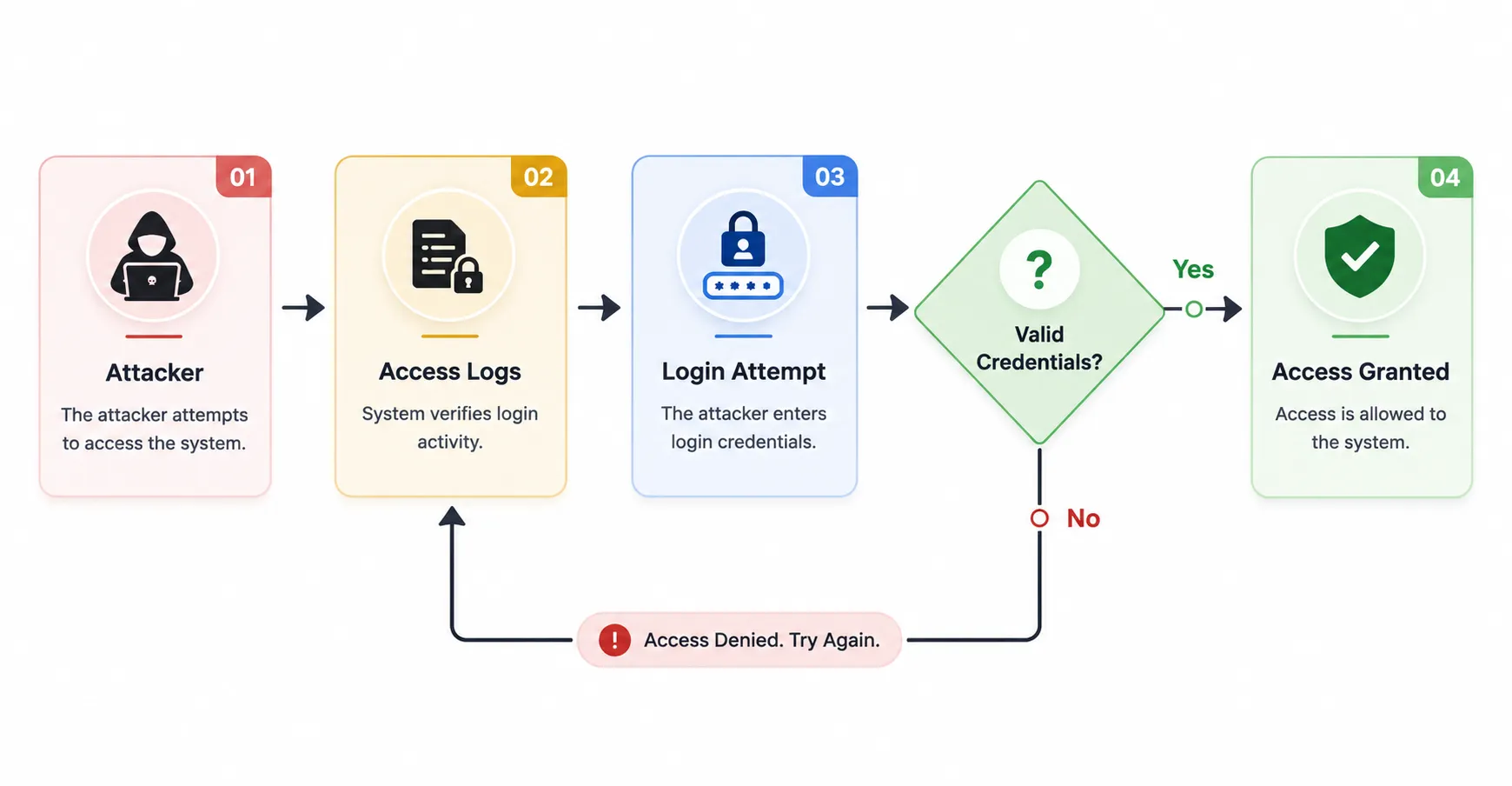
Time to Crack Examples#
| Password Complexity | Characters | Time to Crack (1000 attempts/sec) |
|---|---|---|
1234 | 4 digits | ~10 seconds |
password | 8 lowercase | ~2 hours |
Password1 | 8 mixed | ~3 days |
P@ssw0rd! | 8 with symbols | ~5 months |
MySecur3P@ss! | 14 with symbols | ~400 million years |
Key Insight: Password length and complexity dramatically increase cracking time!
2. Types of Brute Force Attacks#
Simple Brute Force#
Attacker tries all possible combinations systematically.
a, b, c, ..., z
aa, ab, ac, ..., zz
aaa, aab, aac, ...Pros: Guaranteed to eventually find the password
Cons: Extremely time-consuming for complex passwords
Dictionary Attack#
Uses a list of commonly used passwords (wordlist).
# Common password list examples:
password
123456
admin
qwerty
letmein
welcomePros: Faster than simple brute force
Cons: Only effective against weak passwords
Hybrid Attack#
Combines dictionary words with patterns.
password → password1, password123, password!
admin → admin1, Admin2024, admin@2024Pros: Effective against pattern-based passwords
Cons: Still requires time and computing power
Credential Stuffing#
Uses leaked username/password pairs from data breaches.
Pros: High success rate due to password reuse
Cons: Requires access to breach databases
3. Preventing Brute Force Attacks#
Defense Strategy#
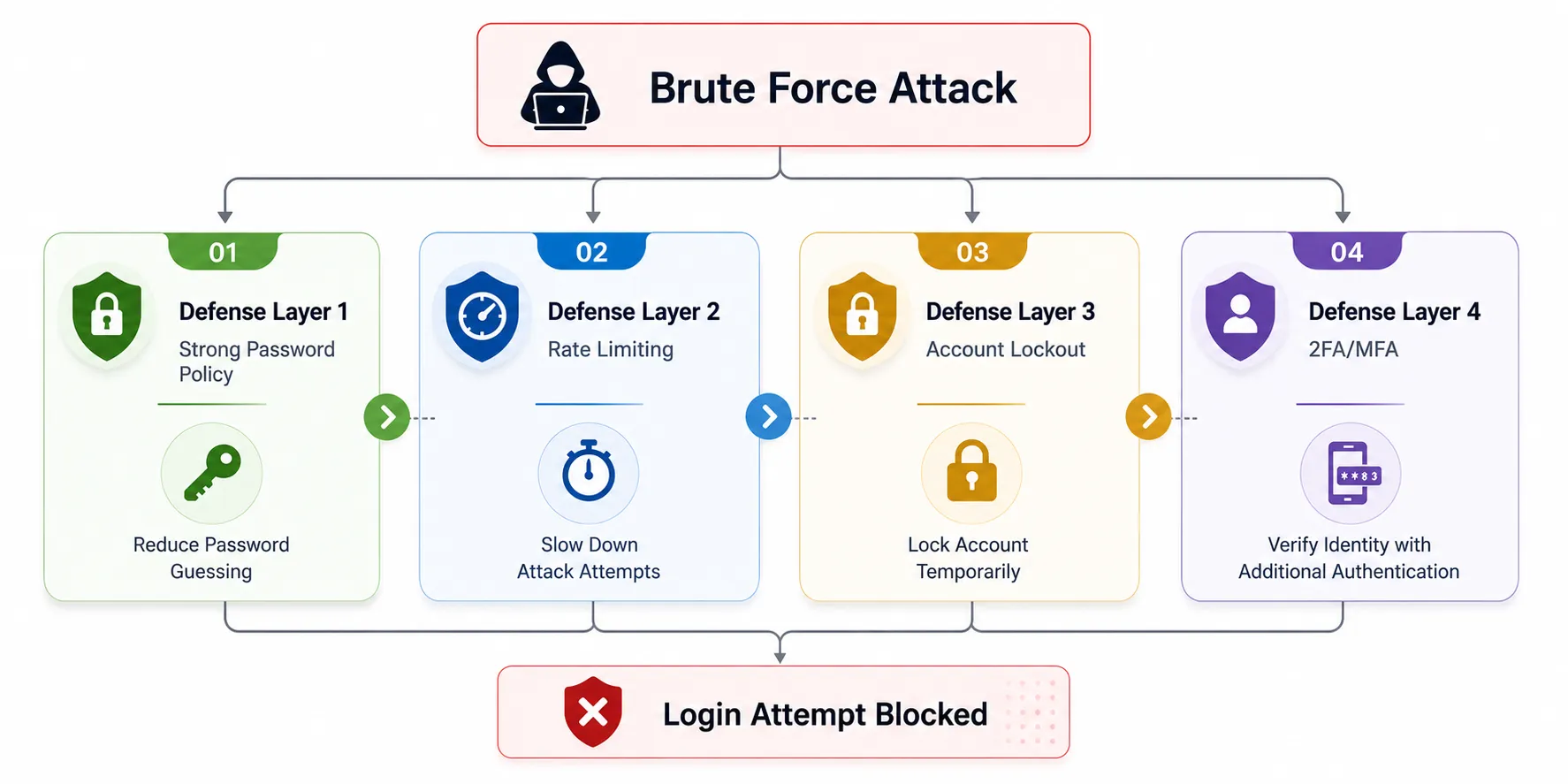
Prevention Techniques#
1. Use Strong, Complex Passwords#
Create passwords that are:
- Long: At least 12-16 characters
- Mixed: Uppercase, lowercase, numbers, symbols
- Unique: Different for each account
- Unpredictable: No dictionary words or patterns
❌ Bad:     password123
❌ Bad:     admin2024
❌ Bad:     qwerty123

✅ Good:    Tr0ub4dor&3Horse!
✅ Better:  correct-horse-battery-staple (passphrase)
✅ Best: Use a password manager!2. Limit Login Attempts#
Restrict the number of login attempts allowed in a timeframe.
# Example rate limiting logic
if failed_attempts > 5:
    block_ip_address()
wait_time = 2^failed_attempts # Exponential backoffImplementation methods:
- Time delays between attempts
- Temporary IP blocking after failures
- CAPTCHA after multiple failures
- Progressive delays (1s, 2s, 4s, 8s…)
3. Enable Two-Factor Authentication (2FA)#
Require additional verification beyond just the password.
Factor 1: Something you KNOW  → Password
Factor 2: Something you HAVE  → Phone/Token
Factor 3: Something you ARE → Biometric2FA Methods:
- SMS OTP (One-Time Password)
- Authentication app (Google Authenticator, Authy)
- Hardware token (YubiKey)
- Biometric verification
4. Account Lockout Policy#
Automatically lock accounts after repeated failed attempts.
| Failed Attempts | Action |
|---|---|
| 3-5 | Warning + delay |
| 5-10 | Temporary lockout (15-30 min) |
| 10+ | Extended lockout + admin notification |
Caution: Account lockout can lead to DoS if attacker locks out all users
5. Monitor and Alert#
Log suspicious activity and send alerts.
# Alert triggers to implement
- Multiple failed logins from same IP
- Logins from unusual geographic locations
- Logins at unusual times
- Simultaneous login attempts from different IPs4. Lab Setup - DVWA Installation#
Now let’s set up our practical lab environment using DVWA (Damn Vulnerable Web Application) - a deliberately insecure web application designed for security training.
Prerequisites#
- Ubuntu Linux VM from Chapter 1
- Firefox browser installed on Ubuntu
- Internet connection on the VM
Exercise 4: Start Your Ubuntu VM#
In VirtualBox, double-click the Ubuntu Linux VM to start it.
SSH Access for Easier Command Copying#
💡 Pro Tip: Using SSH from your host machine makes it much easier to copy commands directly from this tutorial!
Why Use SSH?
When working through a web-based tutorial, switching between your browser (reading) and VM terminal (typing) is cumbersome. SSH lets you read the tutorial on your host machine and execute commands in the Ubuntu VM directly.
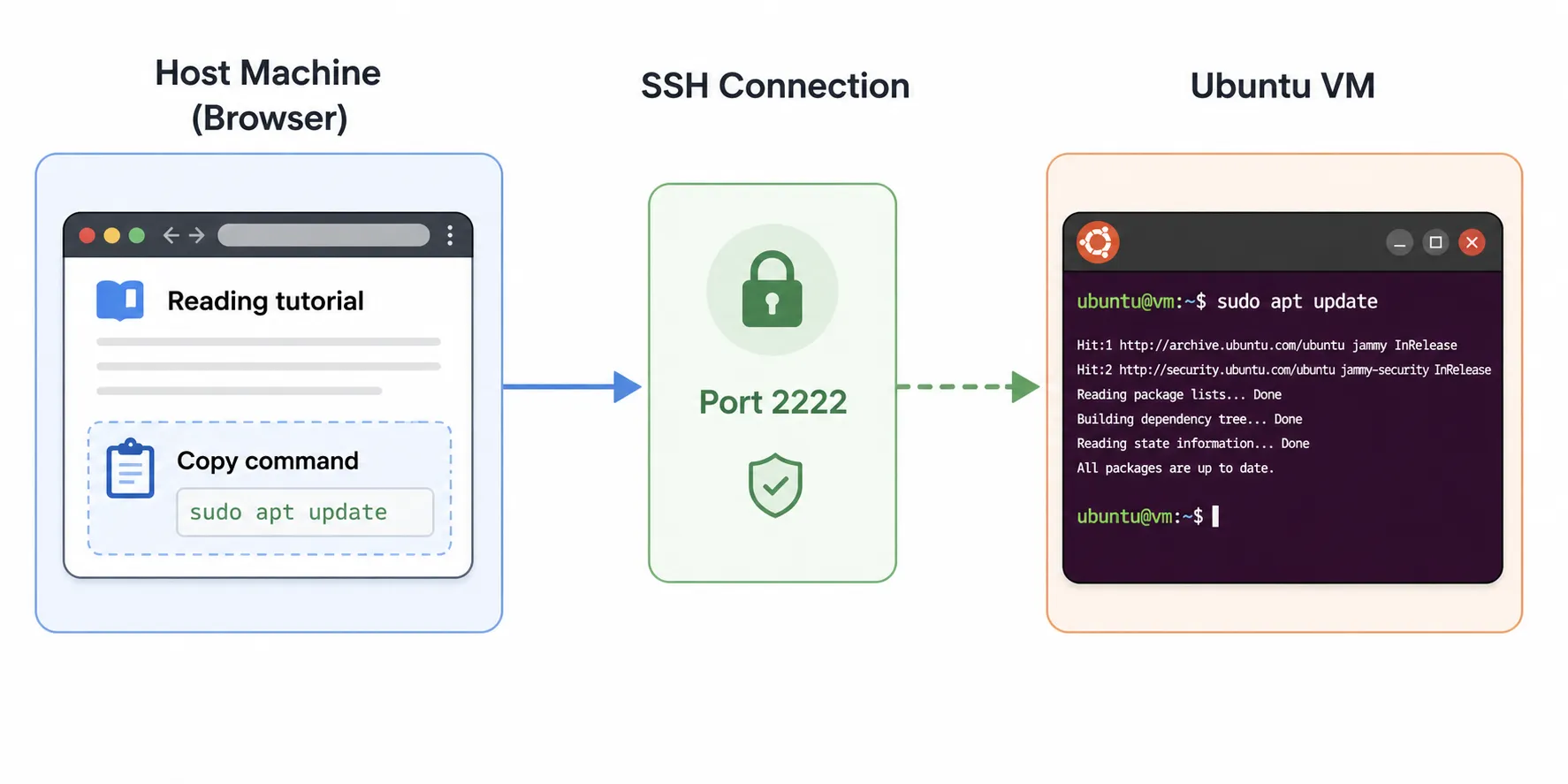
Benefits:
- ✅ Copy-paste commands directly from the browser
- ✅ Read tutorial on larger host machine screen
- ✅ Keep browser and terminal in separate windows
- ✅ No need to switch between VM windows
Verify SSH Access#
From Chapter 1, you should have SSH configured. Let’s verify it’s working.
Verify SSH is running:
sudo service ssh statusExpected output:
● ssh.service - OpenBSD Secure Shell server
     Loaded: loaded (/usr/systemd/system/ssh.service; enabled)
Active: active (running)If not running, start it:
sudo service ssh startEnable SSH to start automatically after reboot:
sudo systemctl enable sshExpected output:
Synchronizing state of ssh.service with SysV service script...
Executing /lib/systemd/systemd-sysv-install enable ssh
Created symlink /etc/systemd/system/multi-user.target.wants/ssh.service → /lib/systemd/system/ssh.service.Connect from Host Machine#
On Windows (Command Prompt or PowerShell):
ssh -p 2222 your_username@localhostOn macOS or Linux (Terminal):
ssh -p 2222 your_username@localhostReplace your_username with your Ubuntu username (e.g., u6090059).
Enter your Ubuntu password when prompted.
Success indicator: Your prompt changes to:
your_username@your_hostname:~$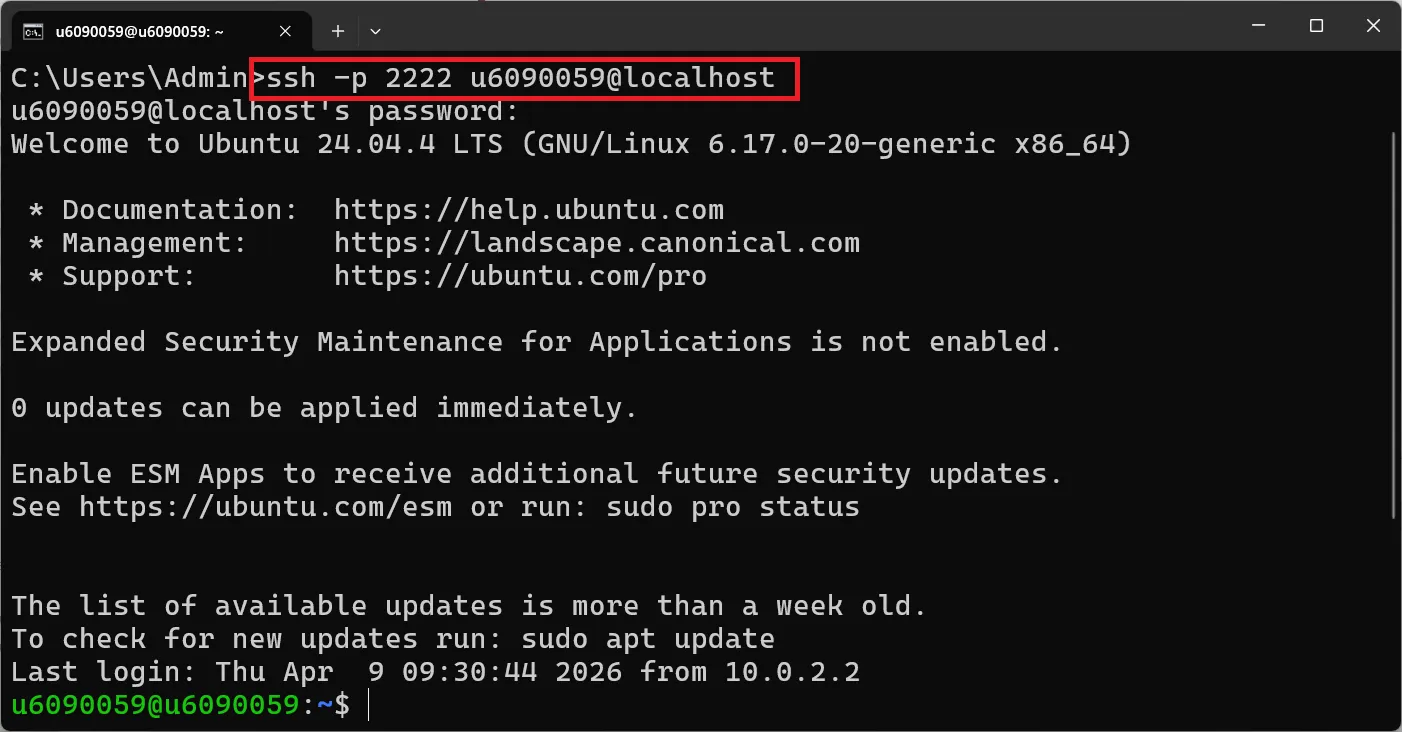
Quick SSH Reference#
| Task | Command |
|---|---|
| Connect to VM | ssh -p 2222 user@localhost |
| Exit SSH session | exit or Ctrl + D |
| Copy from browser | Highlight text, Ctrl + C |
| Paste in terminal | Ctrl + Shift + V (Linux) or right-click paste |
Test Your SSH Connection#
Once connected via SSH, try these commands to verify everything works:
pwd
whoami
uname -aExpected output:
/home/your_username
your_username
Linux your_hostname 6.5.0-... #ubuntu SMP ...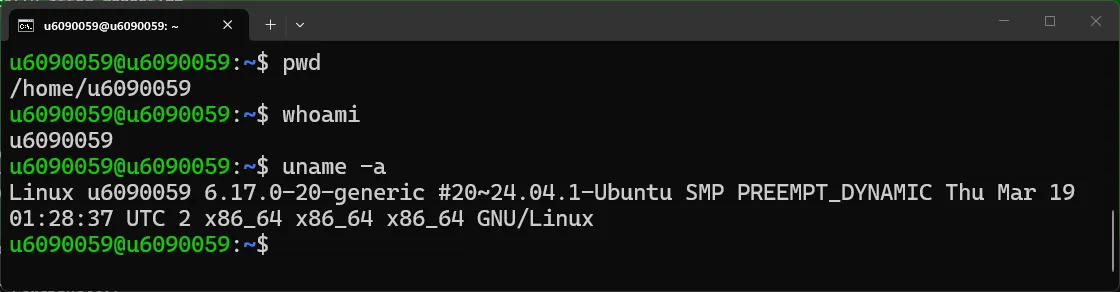
🎯 From now on, all commands in this tutorial assume you’re connected via SSH! This makes it easy to copy-paste commands directly from your browser to your terminal.
Exercise 5: Install DVWA#
Update your system first:
sudo apt update
sudo apt upgrade -yInstall required dependencies:
sudo apt install -y apache2 mariadb-server php php-mysql php-gd libapache2-mod-phpVerify Apache is running:
sudo systemctl status apache2Expected output:
● apache2.service - The Apache HTTP Server
     Loaded: loaded (/lib/systemd/system/apache2.service; enabled)
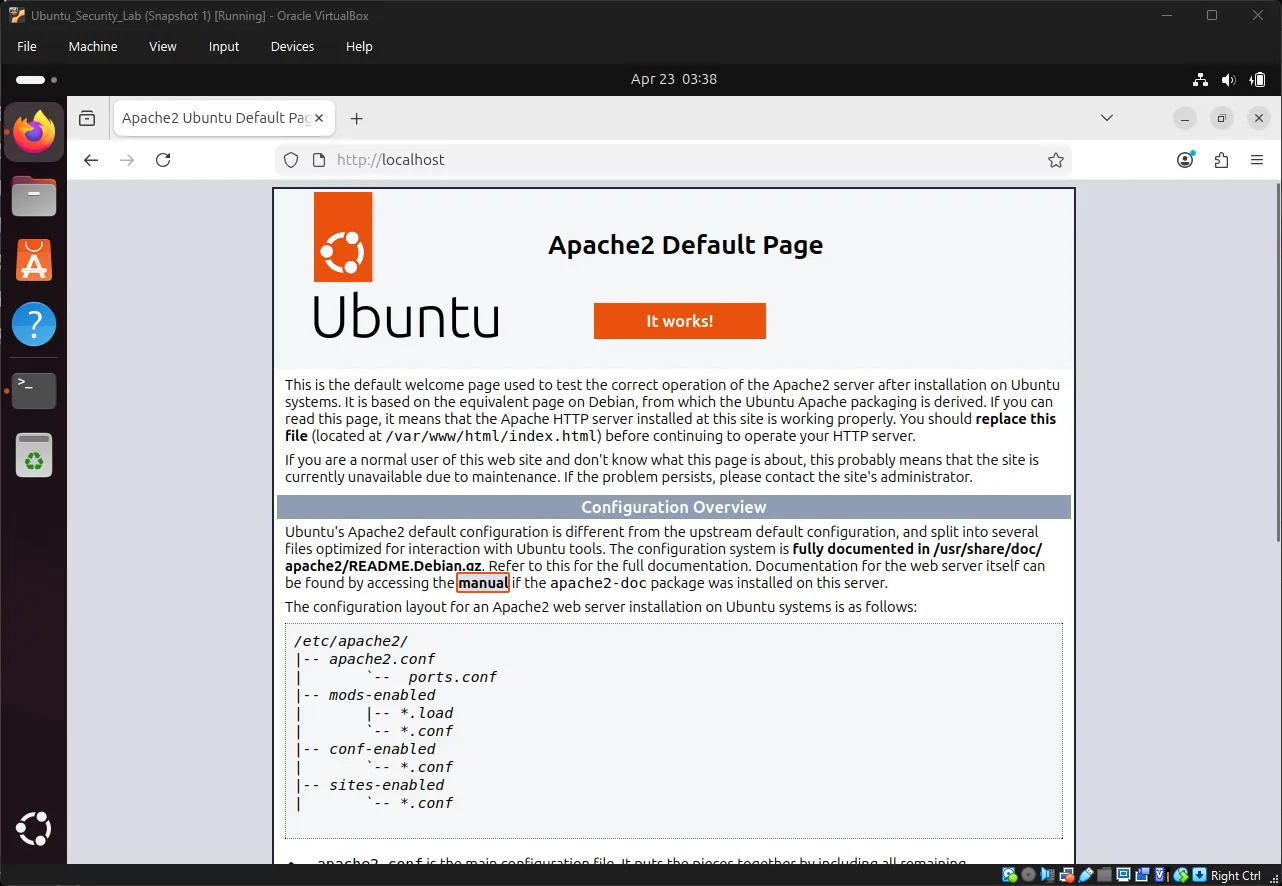
Active: active (running) since ...Test Apache on Firefox in VM:
Open Firefox in the Ubuntu VM and navigate to: http://localhost ↗
You should see the Apache2 Ubuntu Default Page indicating Apache is working correctly.
Understanding Apache Web Server#
Apache is a web server software that serves files over HTTP. When you access http://localhost, Apache looks for files in /var/www/html/ and serves them to your browser.
How Apache works:
Browser Request: http://localhost/test/
         ↓
Apache receives request
         ↓
Looks for: /var/www/html/test/index.html
         ↓
Sends file back to browserExercise: Create Your First Web Page#
Let’s create a simple HTML page to understand how Apache serves content.
Create a test directory:
sudo mkdir -p /var/www/html/testCreate an HTML file using nano:
sudo nano /var/www/html/test/index.htmlAdd the following HTML content:
<!DOCTYPE html>
<html>
<head>
    <title>My Test Page</title>
</head>
<body>
    <h1>Hello World</h1>
    <p>This is my first web page on Apache!</p>
</body>
</html>Press Ctrl + O, Enter, then Ctrl + X to save and exit.
Set proper permissions:
sudo chown -R www-data:www-data /var/www/html/test
sudo chmod -R 755 /var/www/html/testTest your page in Firefox:
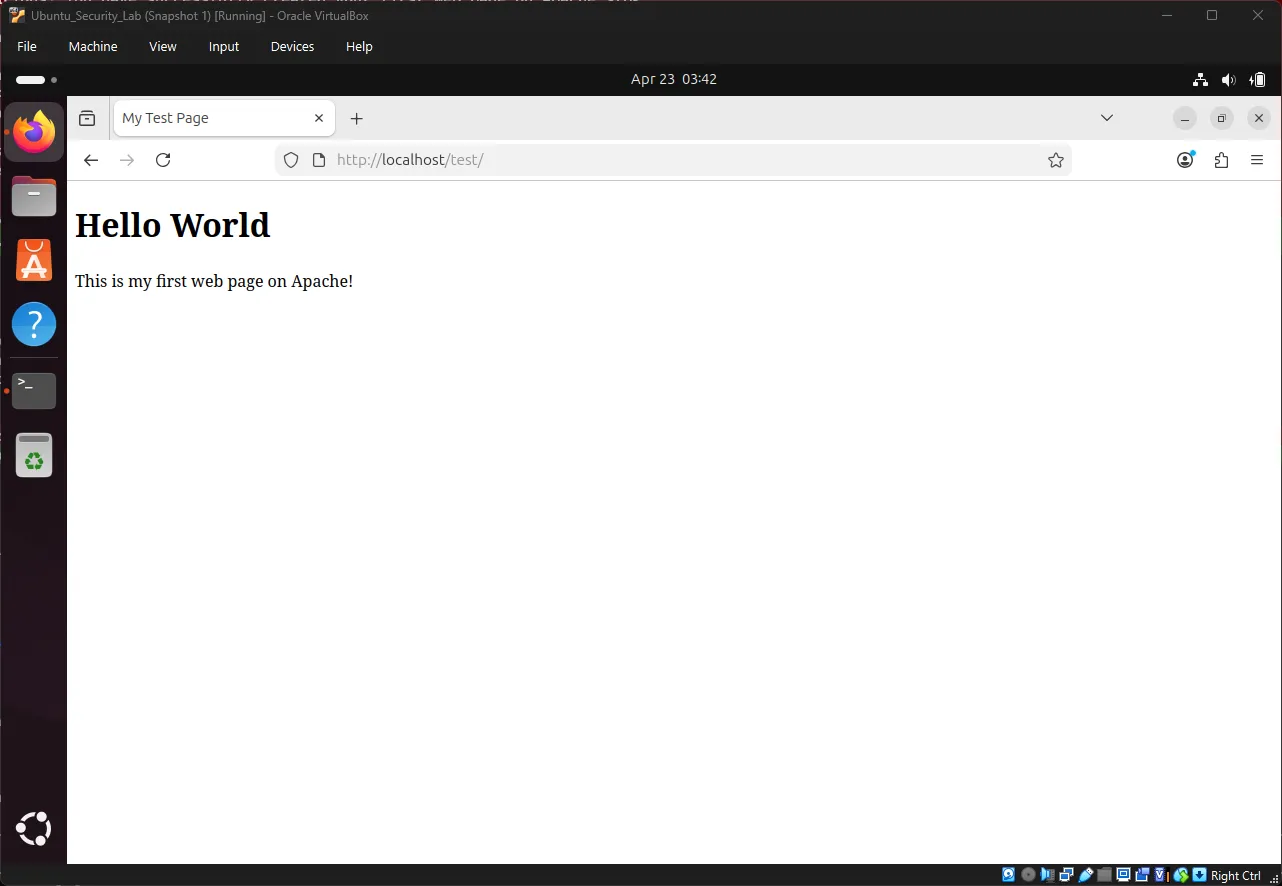
In Firefox (inside the Ubuntu VM), navigate to: http://localhost/test/ ↗
You should see a simple page with “Hello World” heading and text below it.
Understanding what happened:
- You created
/var/www/html/test/index.html - Apache automatically serves
index.htmlwhen you access a directory - The URL
http://localhost/test/maps to/var/www/html/test/ - Apache reads the HTML file and sends it to your browser
💡 Key Concept: In web development, URLs map to the file system. When you deploy DVWA, it works the same way -
http://10.0.2.15/dvwa/maps to/var/www/html/dvwa/. Replace10.0.2.15with your actual IP address.
Download DVWA:
Install git first (if not already installed):
sudo apt install git -yClone DVWA repository:
cd /var/www/html
sudo git clone https://github.com/digininja/DVWA.git dvwa
sudo chown -R www-data:www-data /var/www/html/dvwaConfigure DVWA:
cd /var/www/html/dvwa/config
sudo cp config.inc.php.dist config.inc.php
sudo nano config.inc.phpEdit the database password line:
# Find this line and change it:
$_DVWA[ 'db_password' ] = getenv('DB_PASSWORD') ?: 'p@ssw0rd';Press Ctrl + O, Enter, then Ctrl + X to save and exit.
Set up permissions:
sudo chmod 666 /var/www/html/dvwa/hackable/uploads/
sudo chmod 666 /var/www/html/dvwa/config/config.inc.phpEnable PHP allow_url_include:
sudo nano /etc/php/8.3/apache2/php.iniSearch for the setting:
Press Ctrl + W, type allow_url_include, and press Enter to quickly find this line.
Change:
allow_url_include = Offto:
allow_url_include = OnPress Ctrl + O, Enter, then Ctrl + X.
Restart Apache:
sudo systemctl restart apache2Create the database and user:
sudo mysqlIn the MariaDB prompt:
CREATE DATABASE dvwa;
CREATE USER 'dvwa'@'localhost' IDENTIFIED BY 'p@ssw0rd';
GRANT ALL PRIVILEGES ON dvwa.* TO 'dvwa'@'localhost';
FLUSH PRIVILEGES;
EXIT;Note: MariaDB is a drop-in replacement for MySQL, so all MySQL commands work the same way.
Exercise 6: Access DVWA#
Find your VM’s IP address:
Install net-tools first (for ifconfig):
sudo apt install net-tools -yCheck your IP address:
ifconfigYou should see something like 10.0.2.15 or 192.168.56.x.
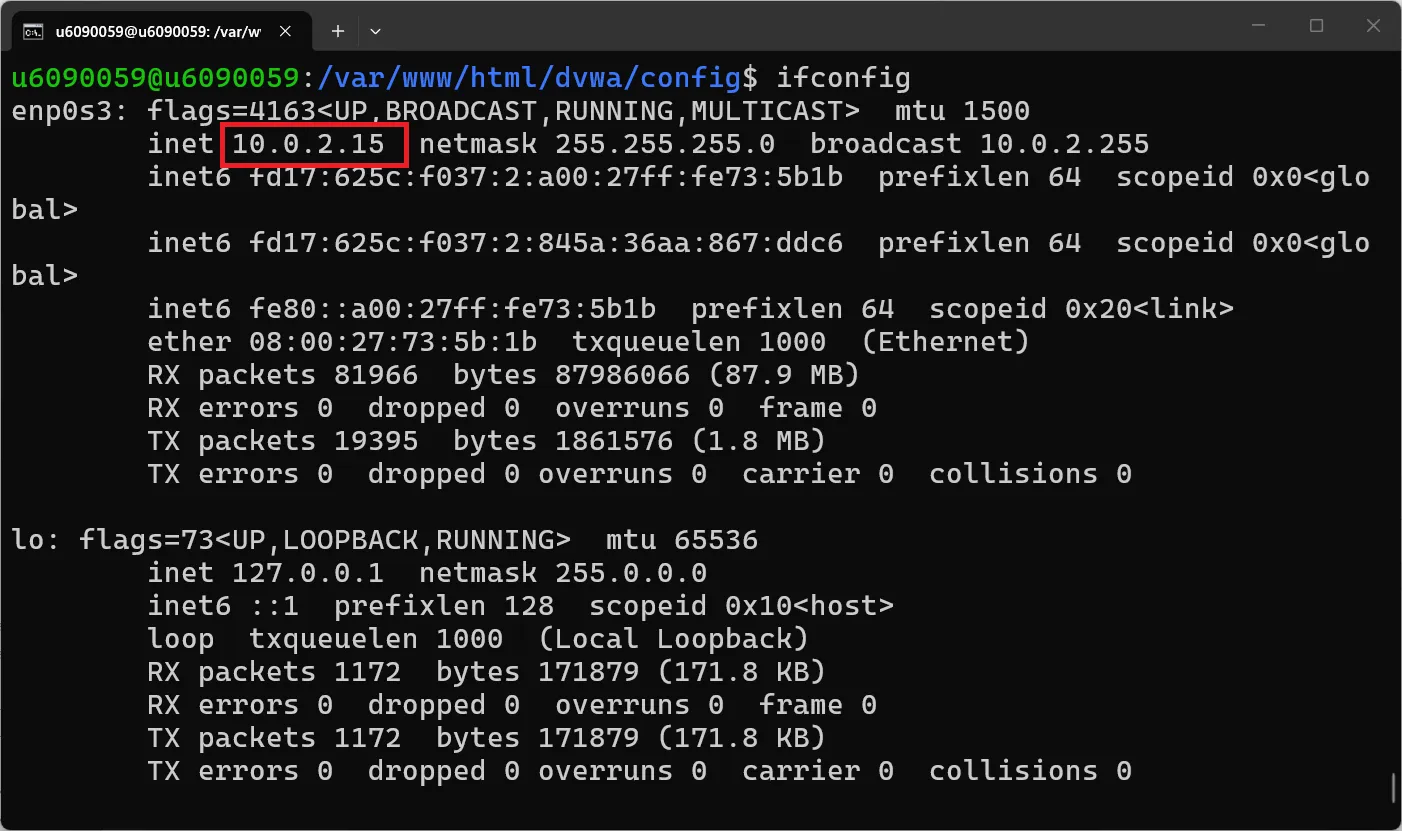
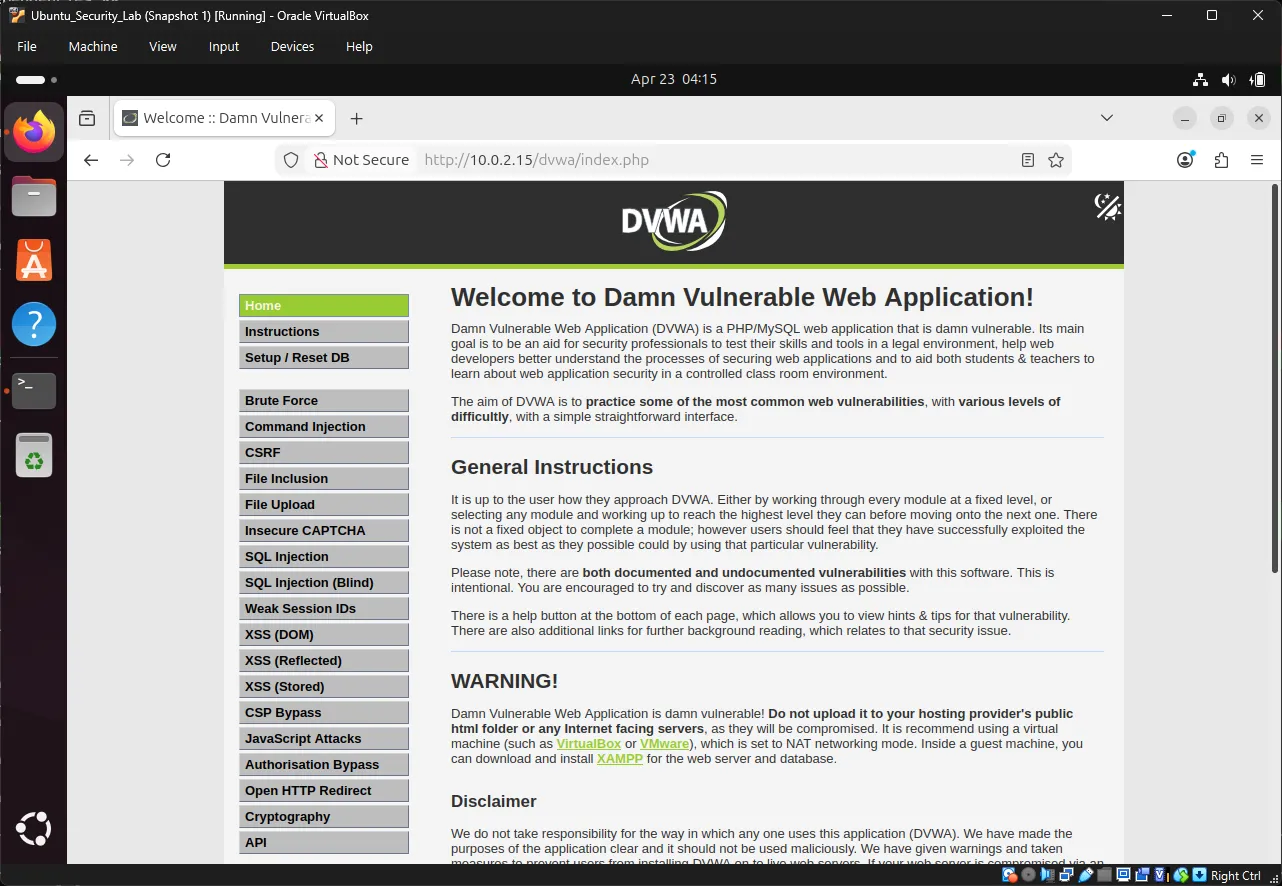
Open Firefox in Ubuntu and navigate to: http://10.0.2.15/dvwa/setup.php ↗
Note: Replace
10.0.2.15with your actual IP address if different. You can also usehttp://localhost/dvwa/setup.phpif working within the VM.
Click “Create / Reset Database” button to initialize DVWA. This will automatically create all required database tables and populate them with demo data.
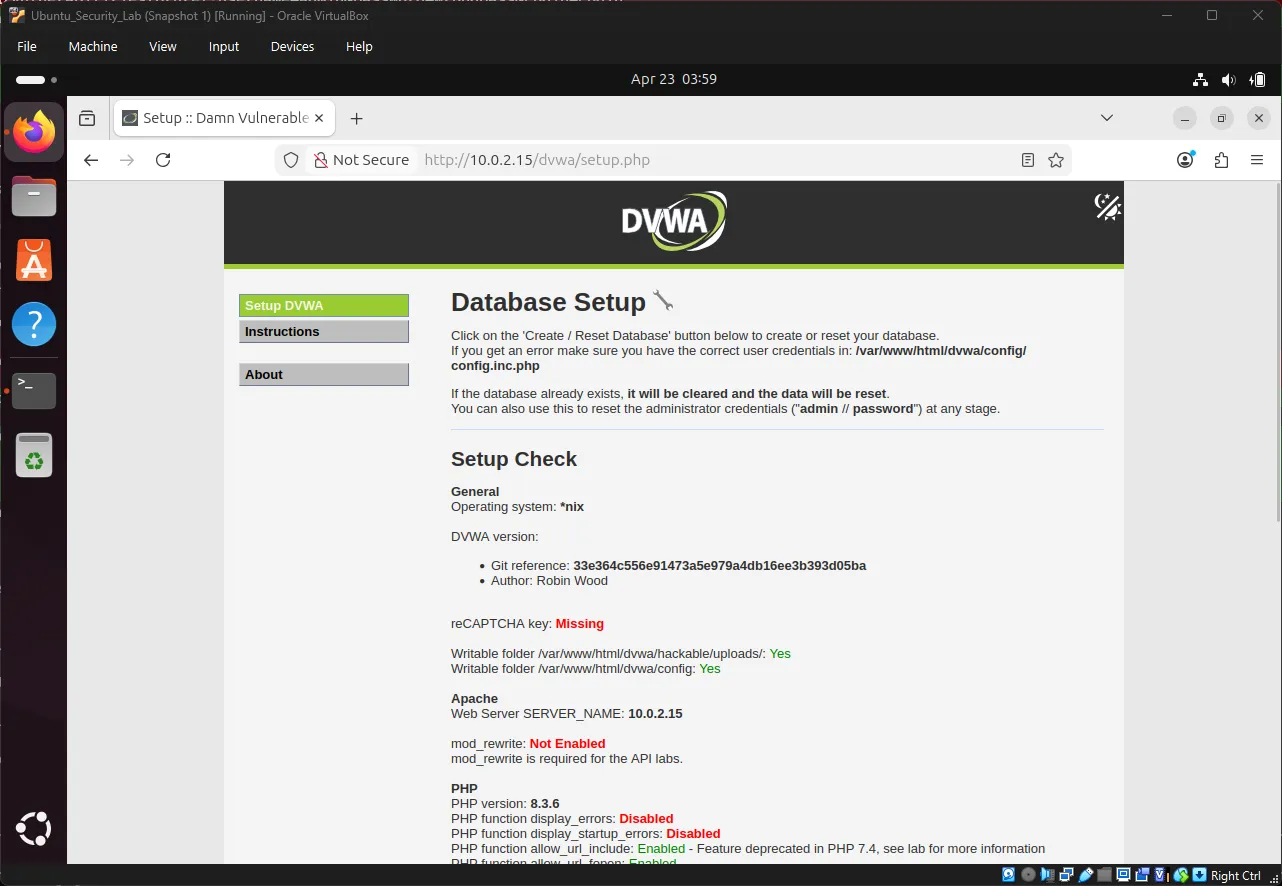
Note: If you see any errors, make sure your database credentials in
config.inc.phpmatch the MySQL user you created.
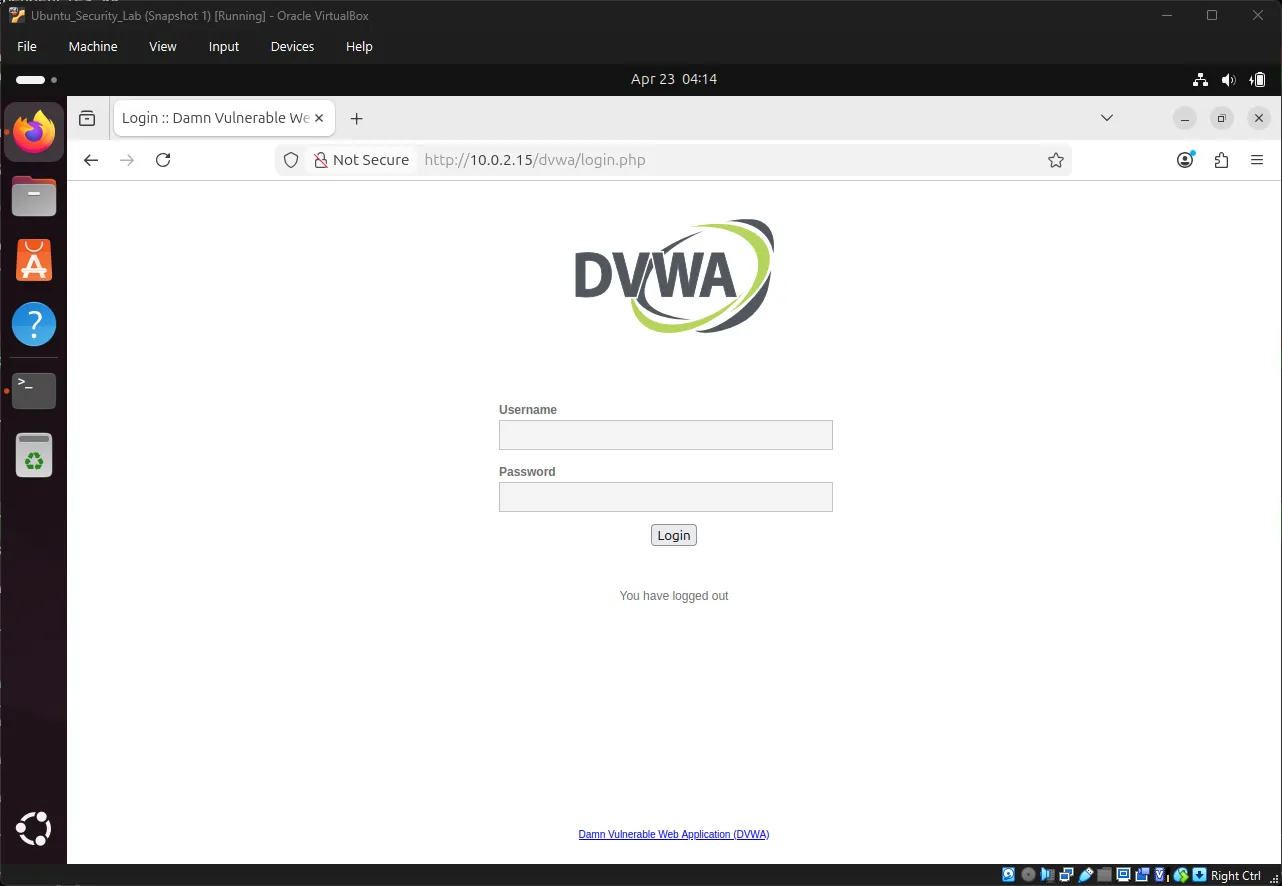
Login to DVWA:
URL: http://10.0.2.15/dvwa/login.php
Username: admin
Password: password
Note: Use your actual IP address. For this example, we’re using
10.0.2.15.
5. Understanding the Brute Force Vulnerability#
Exercise 7: Explore DVWA Brute Force Module#
Navigate to: http://10.0.2.15/dvwa/security.php → Set security level to “Low” → Click Submit
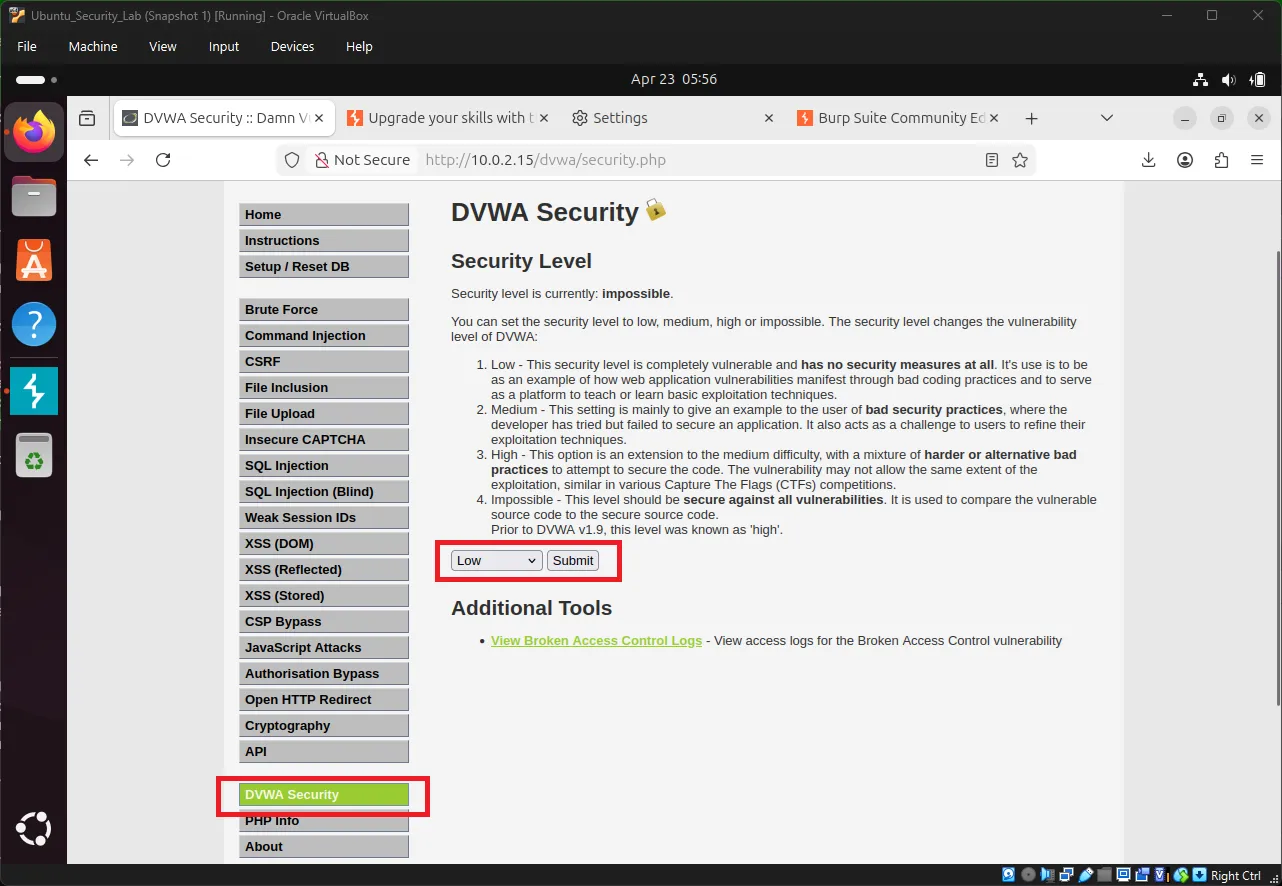
Note: DVWA has multiple security levels (Low, Medium, High, Impossible). We use Low for learning as it has minimal security controls, making it easier to understand and practice brute force attacks.
Then go to: http://10.0.2.15/dvwa/vulnerabilities/brute/
Note: Replace
10.0.2.15with your actual IP address if different.
Try logging in with known credentials:
Username: admin
Password: passwordYou should see a successful login message.
Now logout and try an incorrect password:
Username: admin
Password: wrongpassObserve what happens in the URL:
http://10.0.2.15/dvwa/vulnerabilities/brute/?username=admin&password=wrongpass&Login=LoginNote: Replace
10.0.2.15with your actual IP address. You’ll see your IP in the URL instead.
Key Observation: The username and password are sent via GET request in the URL query parameters! This makes it very easy to intercept and manipulate.
Understanding GET vs POST#
| Method | How Data is Sent | Security | Visibility |
|---|---|---|---|
| GET | In URL query params | Less secure | Visible in URL, history, logs |
| POST | In request body | More secure | Not visible in URL |
# GET Request (what DVWA Low uses)
GET /dvwa/vulnerabilities/brute/?username=admin&password=wrongpass HTTP/1.1

# POST Request (more secure)
POST /dvwa/vulnerabilities/brute/ HTTP/1.1
Content-Type: application/x-www-form-urlencoded

username=admin&password=wrongpass6. Installing Burp Suite Community Edition#
Burp Suite is the industry-standard interception proxy for web application security testing.
Exercise 8: Download Burp Suite#
In Ubuntu Firefox, visit: https://portswigger.net/burp/communitydownload ↗
Download the Linux version (shell script).
Exercise 9: Install Burp Suite#
Navigate to Downloads:
cd ~/Downloads
ls -l burp*Make the installer executable:
sudo chmod +x burpsuite_community_*.shRun the installer:
./burpsuite_community_*.shFollow the prompts through the installation wizard.
Exercise 10: Launch Burp Suite#
Start Burp Suite:
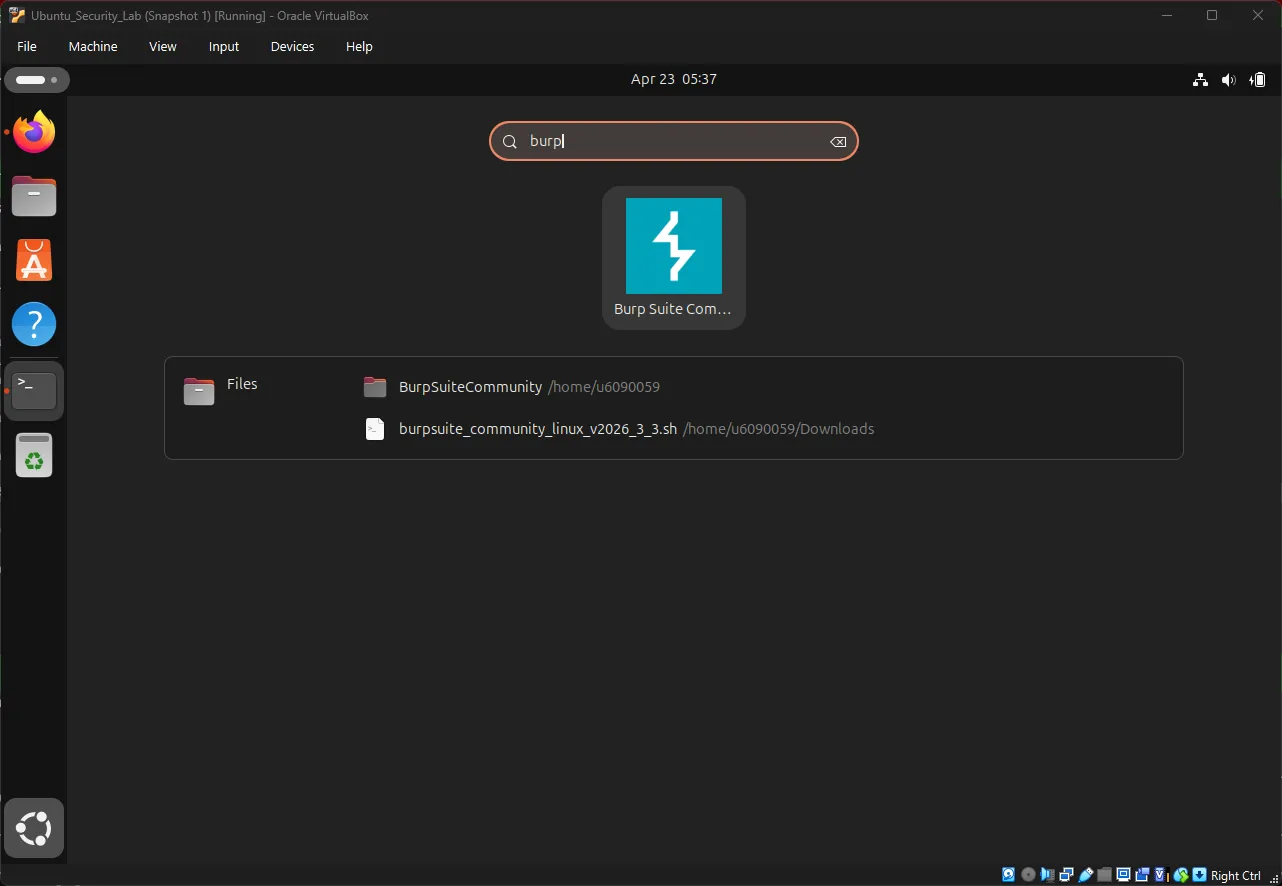
Method 1: Search in Ubuntu Applications
- Click the Show Applications button (grid icon) at the bottom left
- Type
Burp Suitein the search bar - Click Burp Suite to launch
Method 2: Command Line
cd /opt/BurpSuiteCommunity
./burpsuiteInitial Setup Wizard:
- Click Next or Start Burp
- Choose “Use Burp defaults” or configure as needed
- Click Start Burp to launch the main interface
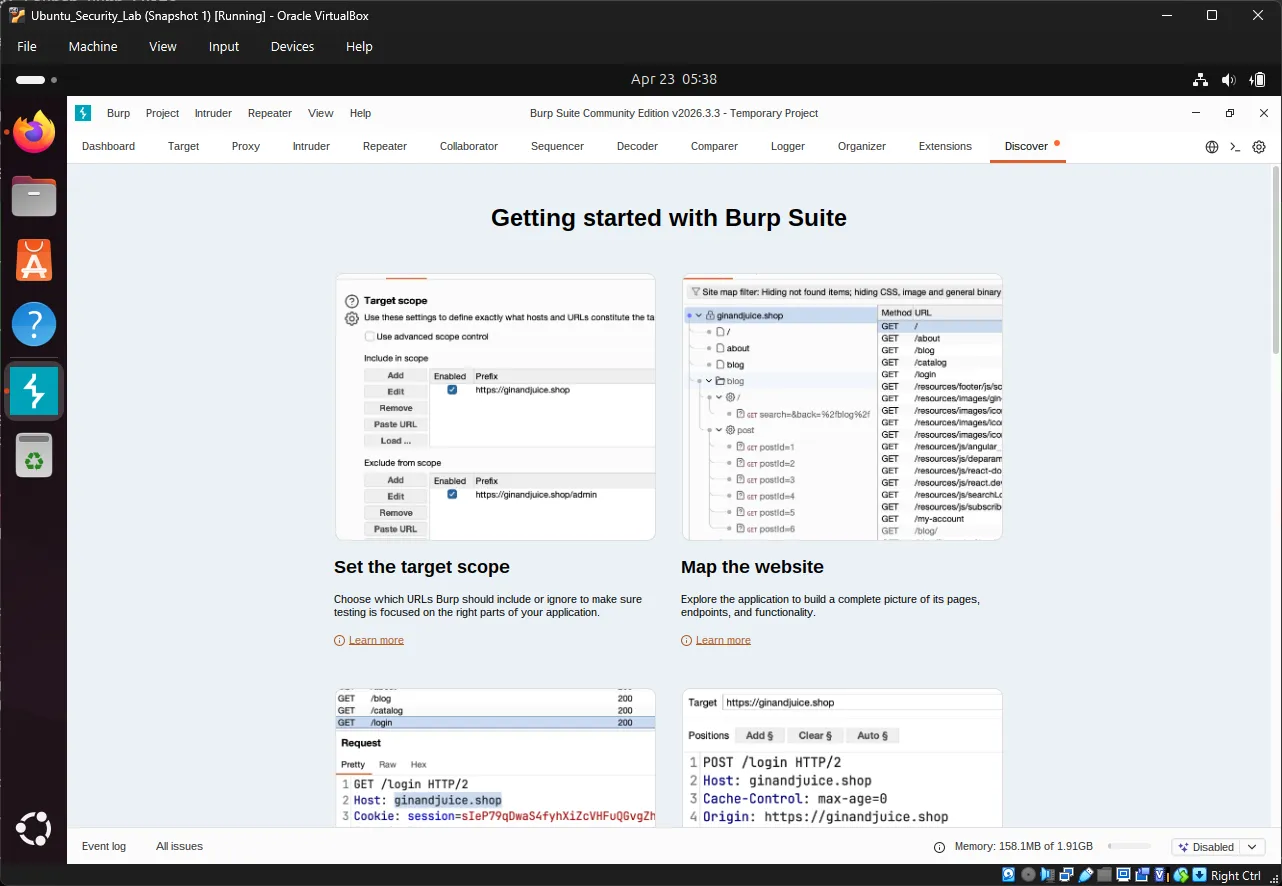
You should see the Burp Suite dashboard:
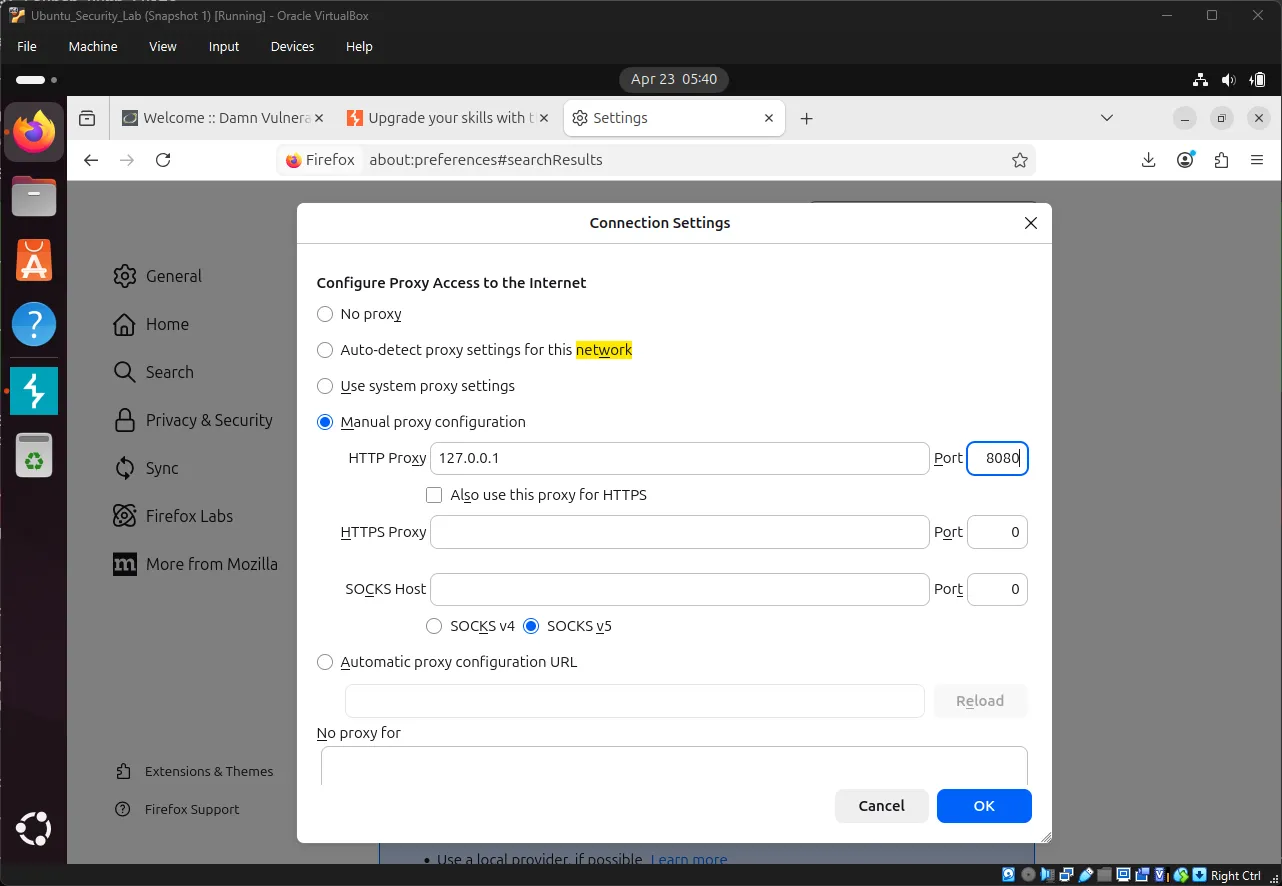
Exercise 11: Configure Firefox Proxy#
Open Firefox in Ubuntu:
- Click the menu button (three lines)
- Go to Settings → Network Settings
- Click Settings
- Select Manual proxy configuration
- Set:
- HTTP Proxy:
127.0.0.1 - Port:
8080
- HTTP Proxy:
- Check “Use this proxy for all protocols”
- Click OK
Verify Burp Suite Proxy:
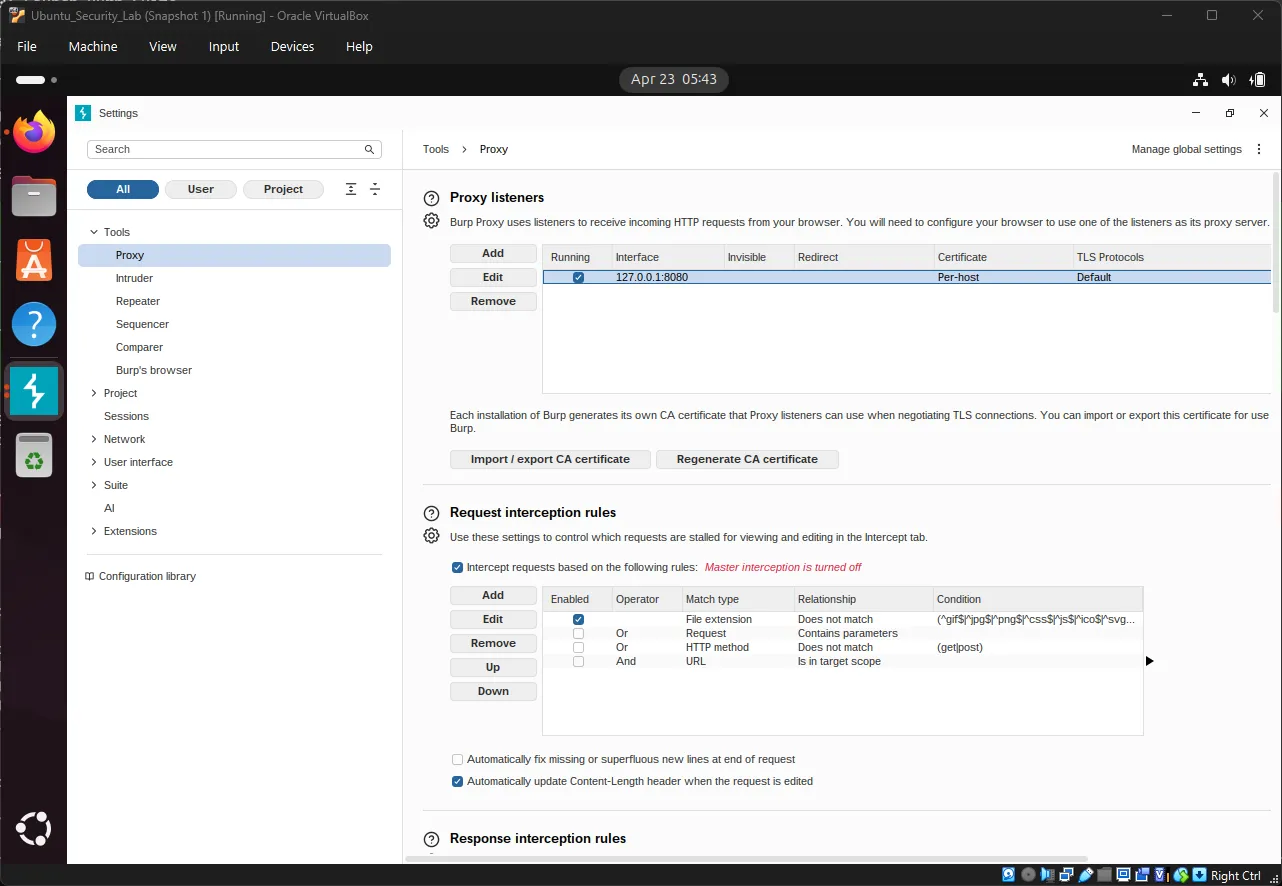
In Burp Suite, go to Proxy → Proxy settings → Proxy
Confirm:
- Interface:
127.0.0.1 - Port:
8080 - Running: ✓ (should show a green checkmark)
Exercise 12: Install Burp Suite CA Certificate#
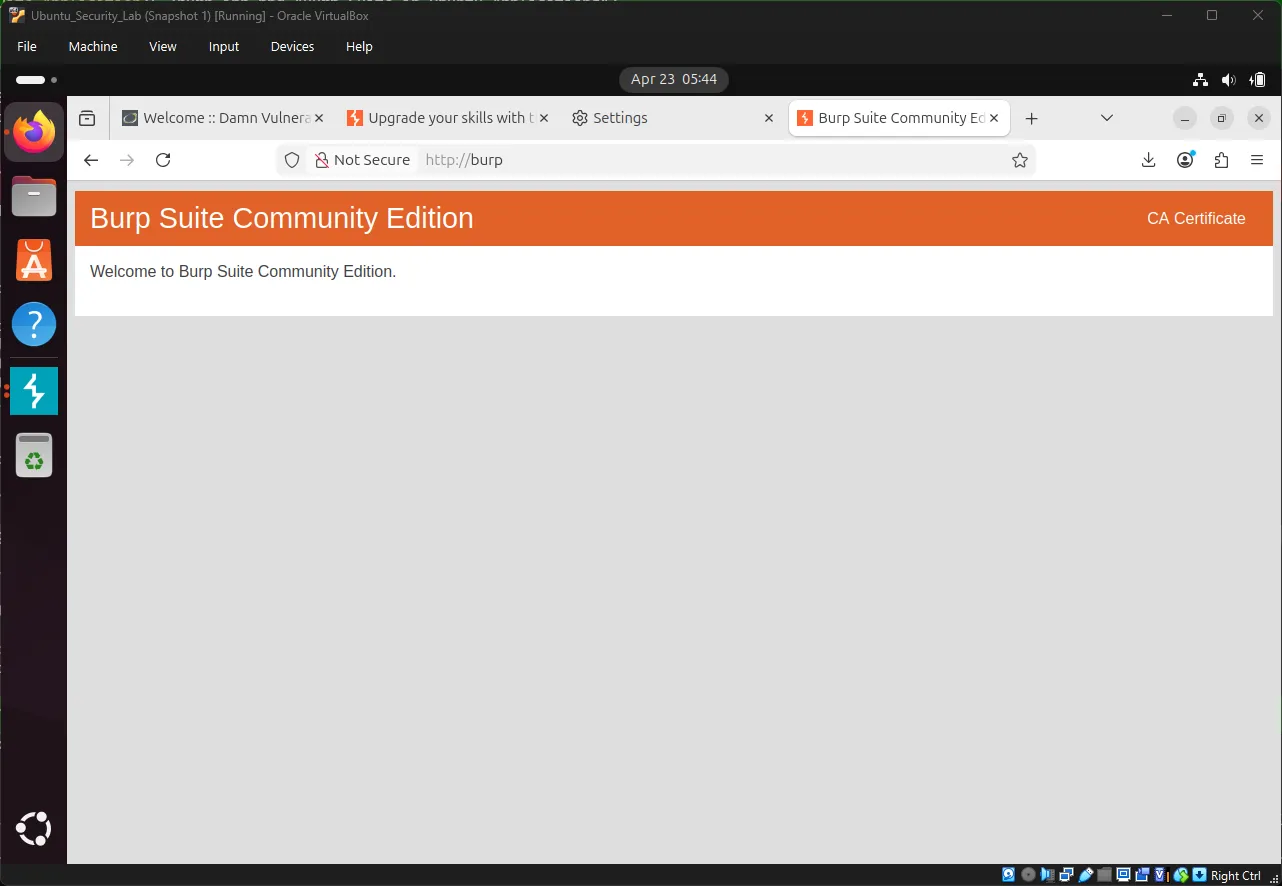
Why? Burp Suite needs to intercept HTTPS traffic, which requires a trusted certificate.
In Firefox, navigate to: http://burp ↗
Download CA Certificate:
- Click “CA Certificate”
- Save the file as
cacert.der
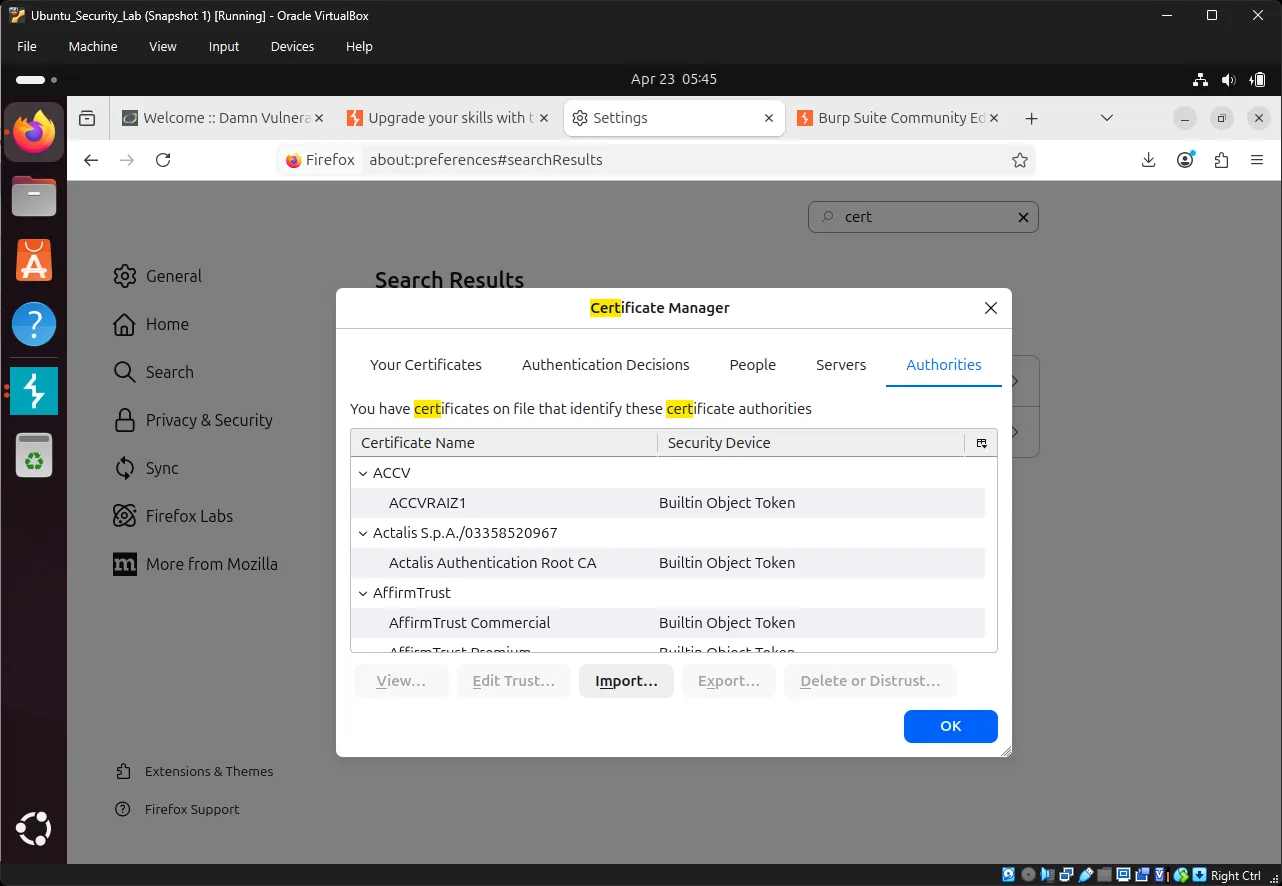
Import the Certificate:
- In Firefox, go to Settings → Privacy & Security
- Scroll to Certificates
- Click View Certificates
- Go to Authorities tab
- Click Import
- Select
cacert.der - Check “Trust this CA to identify websites”
- Click OK
7. Intercepting Requests with Burp Suite#
⚠️ Before proceeding: Ensure your DVWA security level is set to Low. Go to
http://10.0.2.15/dvwa/security.phpand confirm the security level is “Low” before continuing with Burp Suite exercises.
Exercise 13: Enable Intercept Mode#
In Burp Suite:
- Go to Proxy tab
- Click Intercept sub-tab
- Click the “Intercept is on” button to toggle it ON
When Intercept is ON, Burp will capture ALL requests from Firefox.
Exercise 14: Intercept DVWA Login#
With Intercept enabled in Burp:
- In Firefox, go to DVWA Brute Force page
- Try logging in with:
- Username:
admin - Password:
test123
- Username:
- Firefox will appear to hang - this is normal!
Switch to Burp Suite:
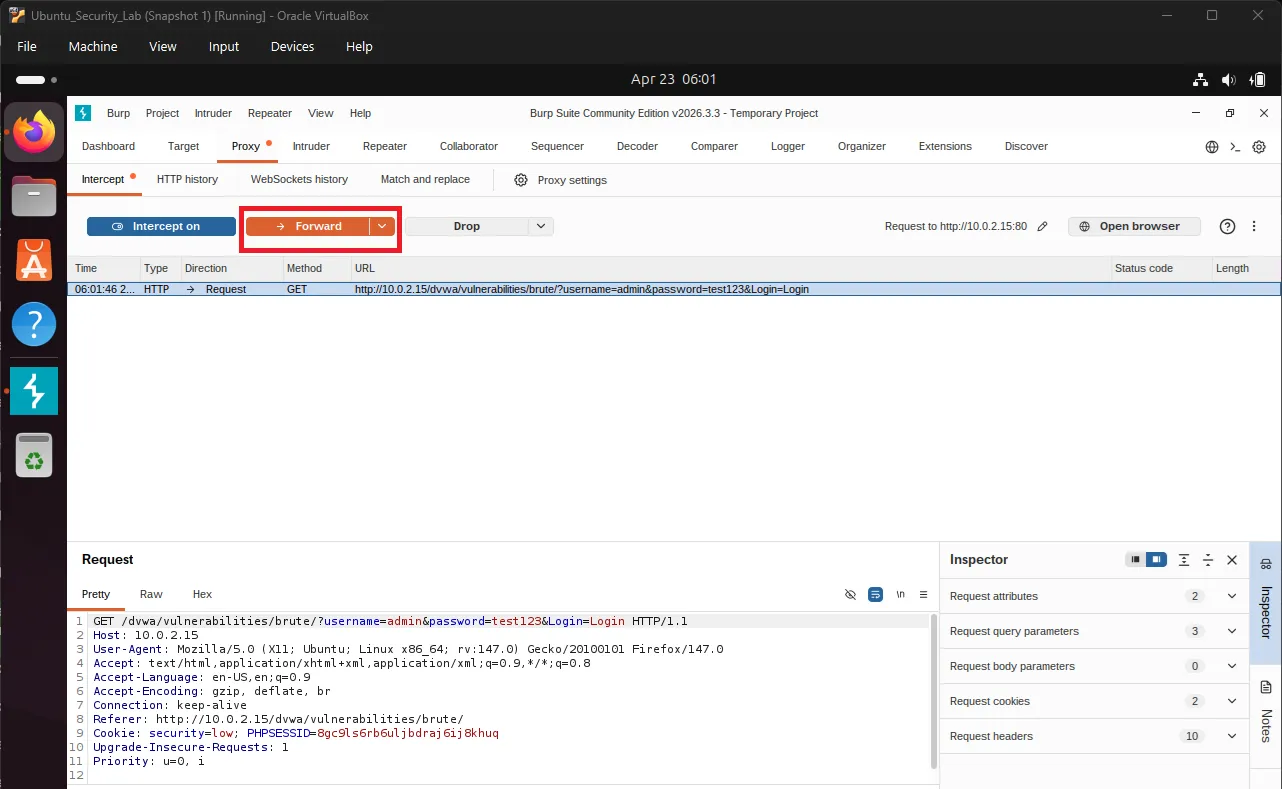
You’ll see the intercepted request:
GET /dvwa/vulnerabilities/brute/?username=admin&password=test123&Login=Login HTTP/1.1
Host: localhost
User-Agent: Mozilla/5.0 ...
Accept: text/html,application/xhtml+xml...Understanding Burp Intercept Actions#
| Action | Keyboard Shortcut | Result |
|---|---|---|
| Forward | Ctrl + F | Send request to server |
| Drop | Ctrl + D | Cancel request |
| Intercept | Ctrl + I | Toggle intercept on/off |
Try it: Click Forward to send the request to DVWA.
Exercise 15: Examine HTTP History#
In Burp Suite:
- Go to Proxy → HTTP History tab
- Find the DVWA login request you just made
- Click on it to view details
Observe the request structure:
Request Line:
GET /dvwa/vulnerabilities/brute/?username=admin&password=test123&Login=Login

Headers:
Host: localhost
User-Agent: Mozilla/5.0...
Accept: text/html...

GET Parameters:
username = admin
password = test123
Login = LoginNow observe the response:
Click the Response tab. You should see:
<pre><br />
Username and/or password incorrect.<br /><br /></pre>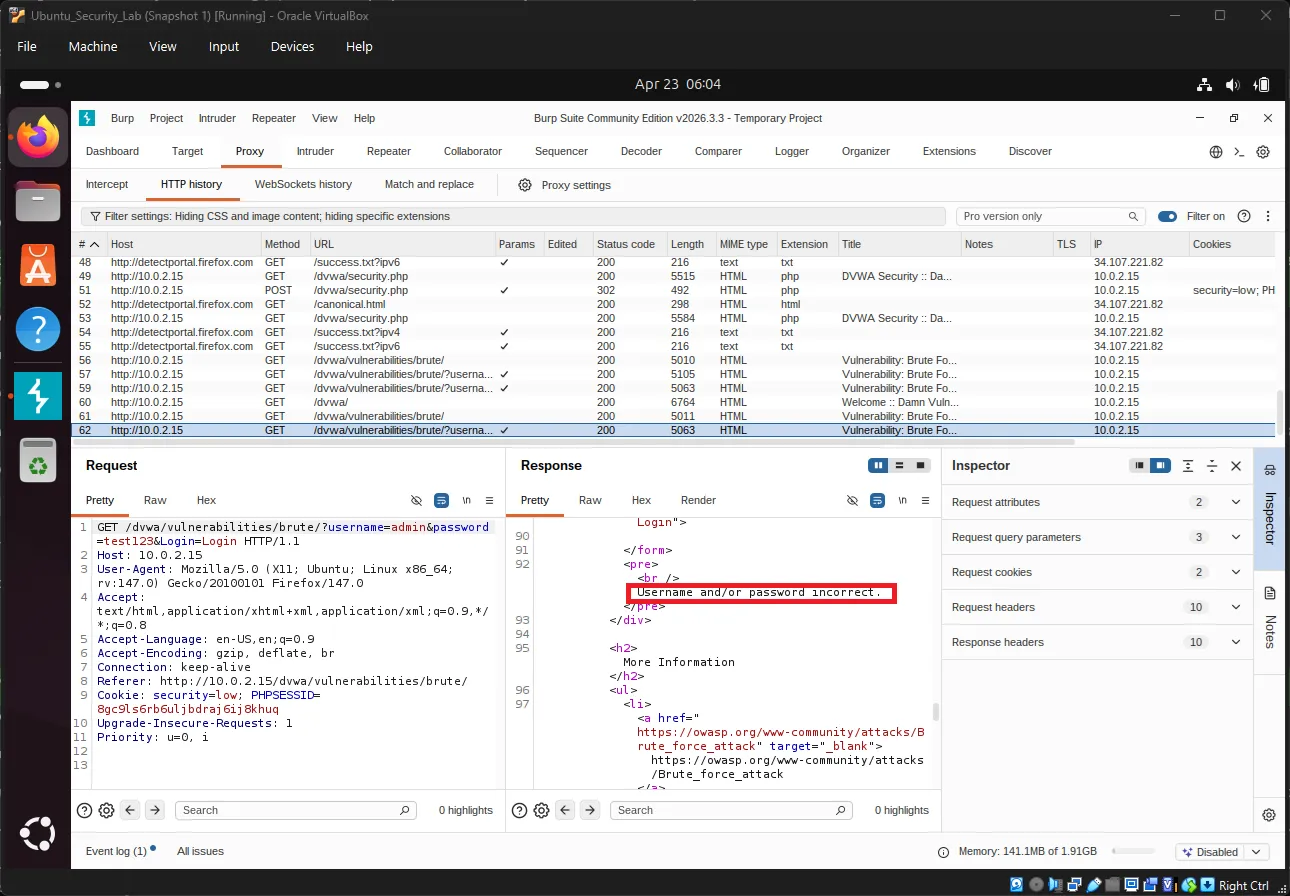
This is the server’s response to our incorrect password!
8. Automated Brute Force with Burp Intruder#
Exercise 16: Send Request to Intruder#
From HTTP History:
- Right-click on the DVWA login request
- Select Send to Intruder
Switch to the Intruder tab in Burp Suite.
Exercise 17: Configure Attack Position#
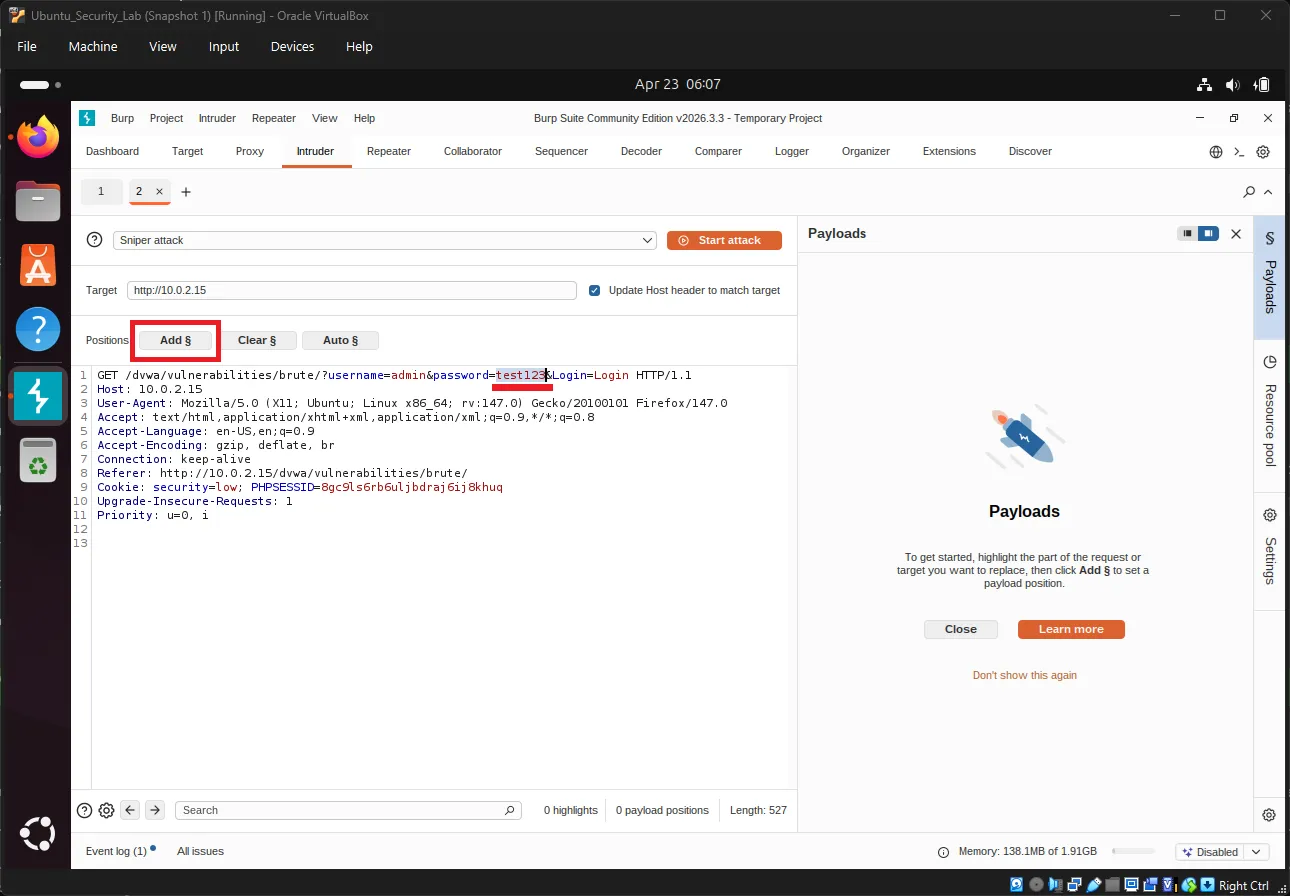
In Intruder → Positions tab:
You’ll see the request with the password field highlighted.
Clear the default positions by clicking Clear § (the Clear Section button)
Now highlight just the password value:
- Select the password text (e.g.,
test123) - Click Add § (the Add Section button)
💡 Note: The
§symbol is called the “section sign” (pronounced “section symbol” or “section mark”). In Burp Suite, it marks the positions where payload values will be inserted during the attack.
Your request should now look like this:
...username=admin&password=§test123§&Login=LoginThe § symbols mark where payloads will be inserted.
Exercise 18: Set Up Payloads#
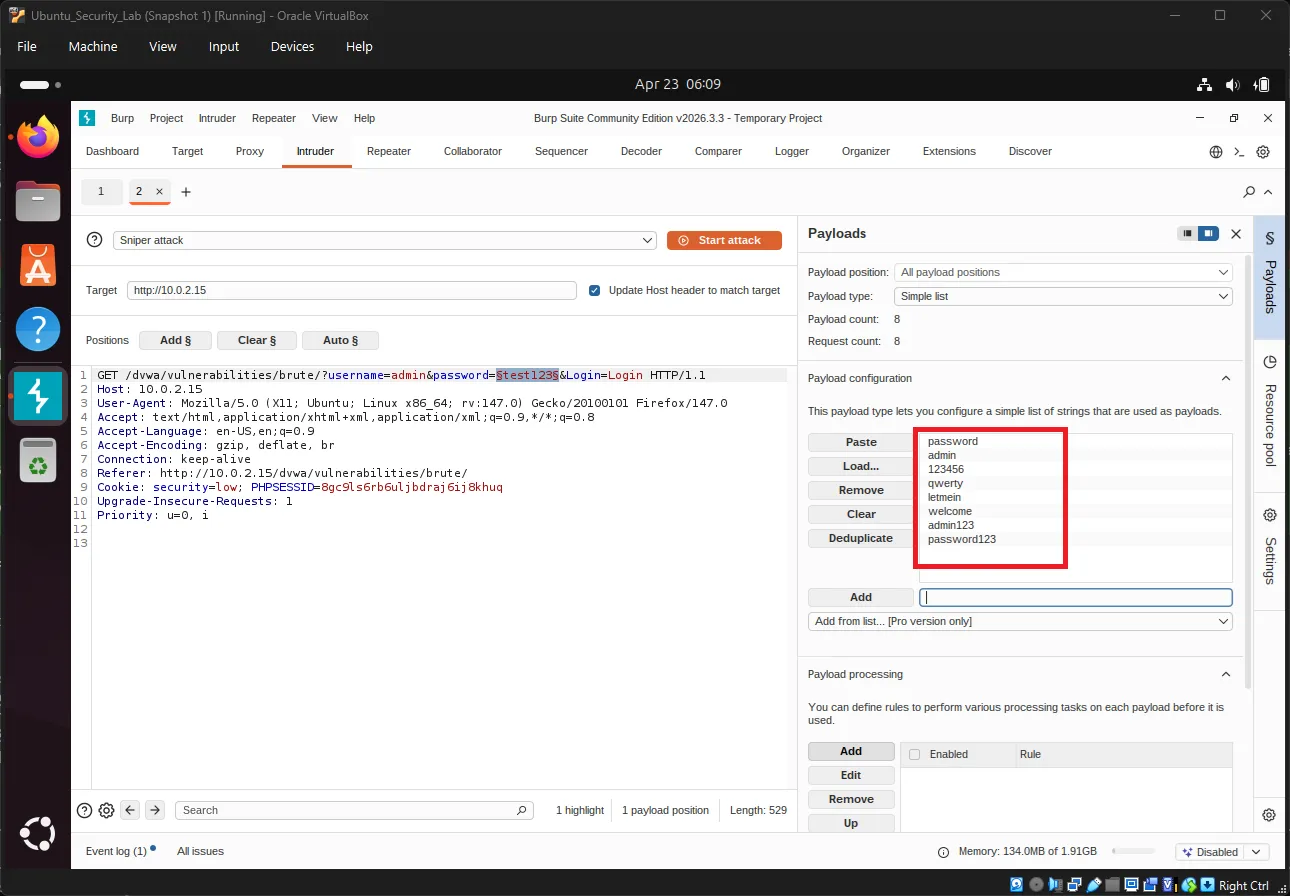
Go to Intruder → Payloads tab:
Payload type: Select Simple list
In Payload Options, add test passwords:
password
admin
123456
qwerty
letmein
welcome
admin123
password123These are common weak passwords for testing.
Exercise 19: Configure Attack Settings#
Go to Intruder → Settings tab:
Attack type: Sniper (one payload position, tested sequentially)
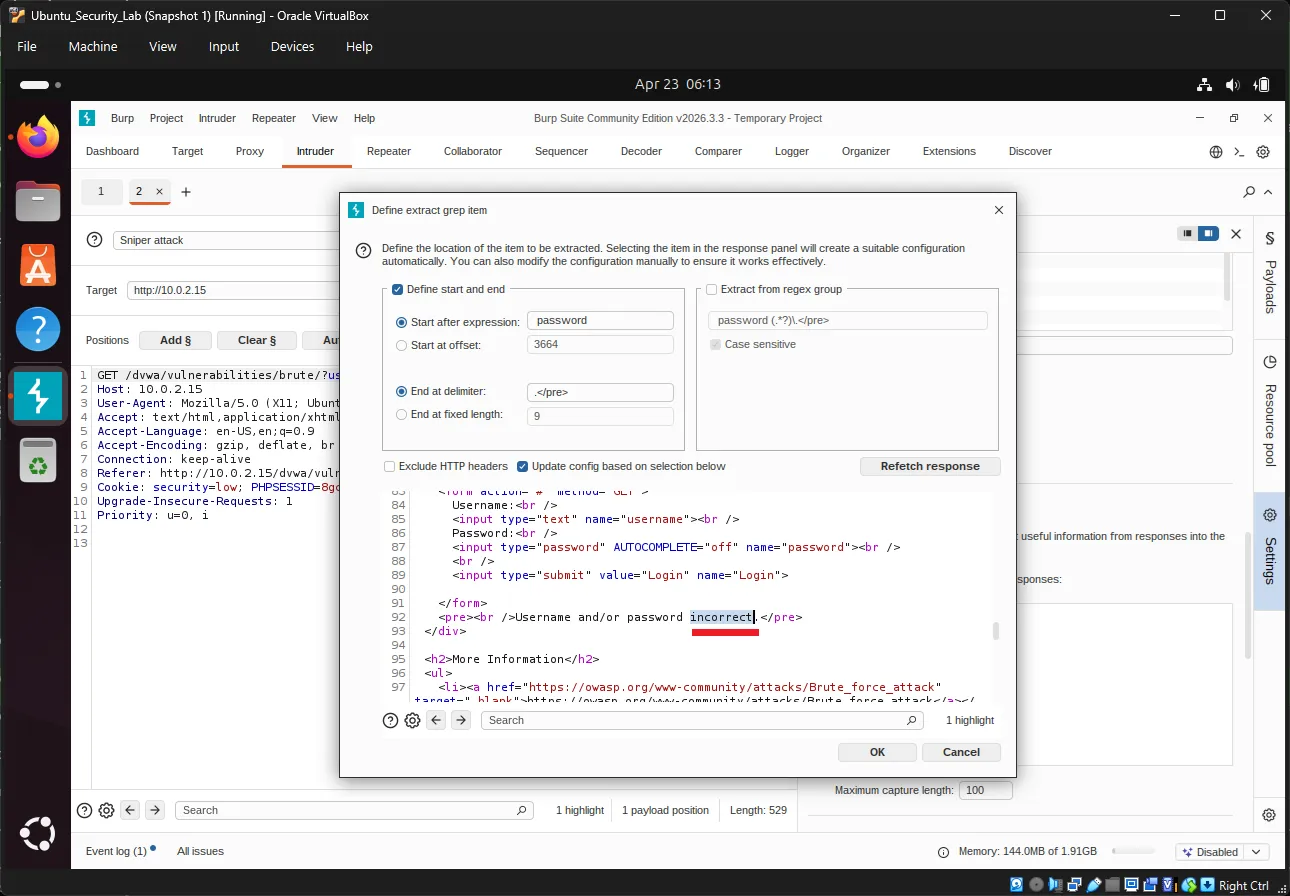
Grep - Extract (optional filtering):
- Click Add under Grep - Extract
- In the response, highlight “incorrect”
- This helps Burp identify failed login attempts
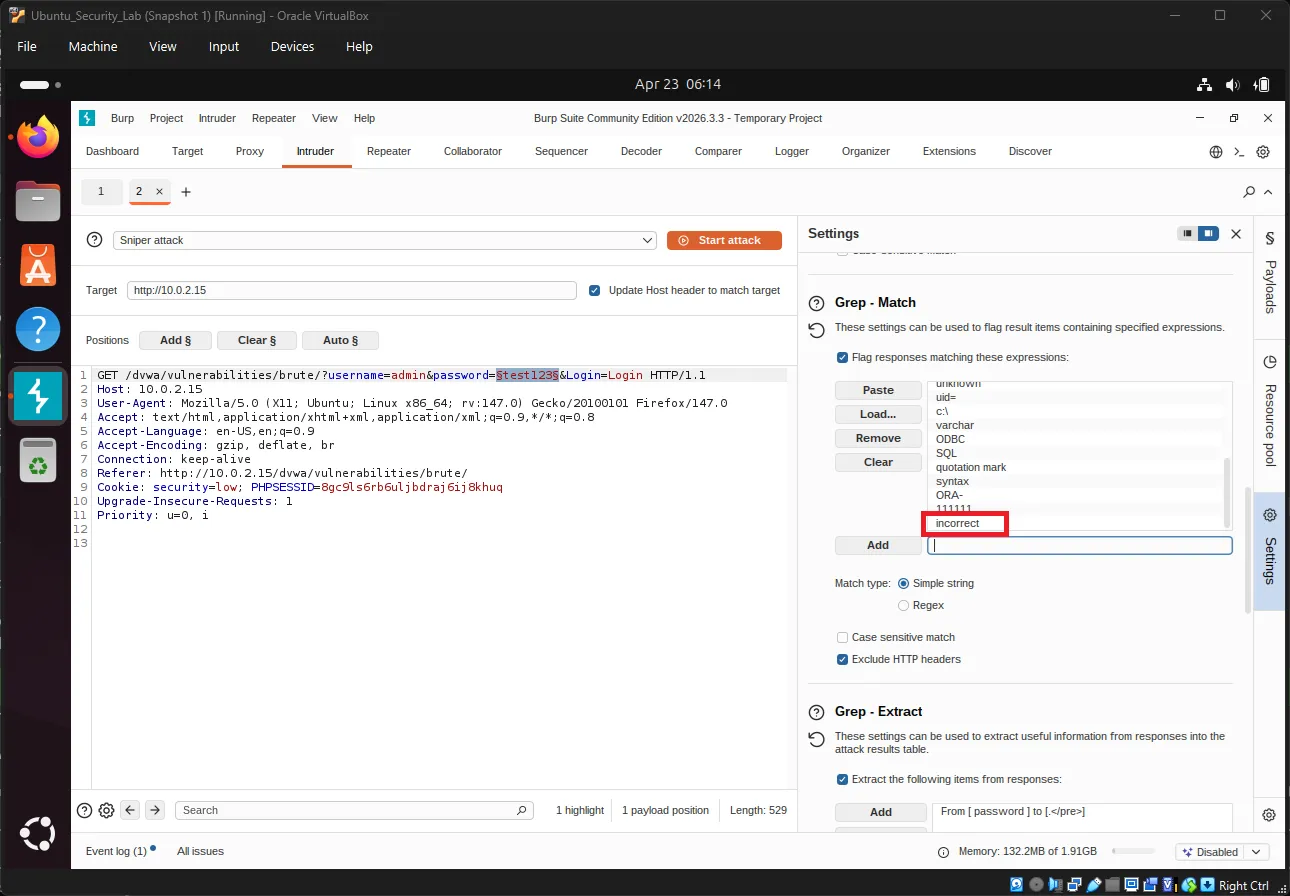
Grep - Match (response filtering):
- Click Add under Grep - Match
- Enter: “incorrect”
- This flags responses containing “incorrect”
Exercise 20: Launch the Attack#
Click the big “Start attack” button in the top-right.
A new window will open showing attack results:
| Payload # | Payload | Status | Length | Error |
|---|---|---|---|---|
| 1 | password | 200 | 4874 | None |
| 2 | admin | 200 | 5120 | None |
| 3 | 123456 | 200 | 4874 | None |
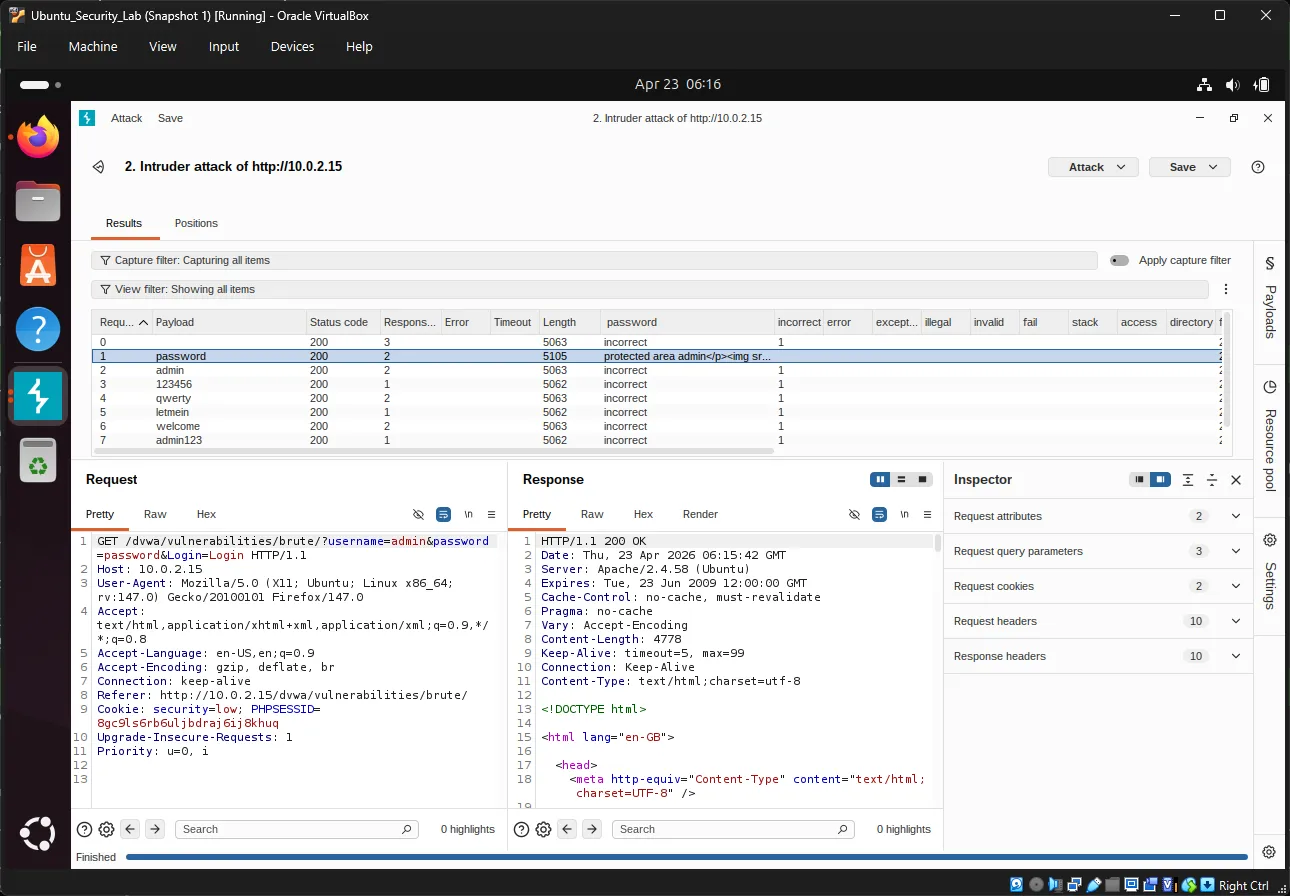
Key Observations:
- Status 200 = Request succeeded (server responded)
- Length differences = Different response content
- Find the payload with a different length - that’s likely the correct password!
Exercise 21: Analyze Results#
In the attack results window:
- Click the Length column header to sort
- Look for entries with different response lengths
- The successful login typically has a different page size
Alternatively, use Grep results:
- Columns on the right show matched flags
- Entries without “incorrect” = successful login
Verify the password:
If “password” shows a different response length, try logging in manually:
Username: admin
Password: password9. Dictionary Attack with Password Lists#
Exercise 22: Download a Password Wordlist#
In Ubuntu terminal:
cd ~/DownloadsDownload John the Ripper’s password list:
wget https://raw.githubusercontent.com/openwall/john/bleeding-jumbo/run/password.lst -O passwords.txtOr use SecLists (more comprehensive):
git clone https://github.com/danielmiessler/SecLists.gitCommon password lists in SecLists:
Passwords/Common-Credentials/10-million-password-list-top-1000.txtPasswords/Software/dragonfly41-top10k.txt
Exercise 23: Load Wordlist into Burp#
Back in Burp Suite Intruder:
- Go to Payloads tab
- Under Payload Options, click Load…
- Navigate to
~/Downloads/passwords.txt - Click Open
Preview payloads: You should see hundreds/thousands of passwords loaded.
Exercise 24: Run Dictionary Attack#
Before starting, adjust settings:
In Intruder → Settings:
- Request Engine: Set threads to 1-5 (don’t overload)
- Attack type: Sniper
Start the attack and wait for completion.
Exercise 25: Filter and Analyze#
In the attack results:
Filter by response length:
- Click Length column to sort
- Identify outliers
Filter by keyword:
- Add a Grep - Match rule for: “Welcome”
- Or search for: “incorrect”
- Results WITHOUT “incorrect” are successful
Expected result: One entry will show:
- Different response length
- No “incorrect” message
- May show welcome message or redirect
10. Advanced Analysis Techniques#
Response Length Analysis#
Different response lengths indicate different outcomes:
| Response | Length | Meaning |
|---|---|---|
| ~4800 bytes | Base length | Failed login |
| ~5100 bytes | Different length | Successful login |
Grep - Extract for Precise Filtering#
Extract specific text from responses:
- Settings → Grep - Extract → Add
- Highlight the text you want to extract (e.g., “incorrect”)
- Define start and end markers
- Results show extracted values in a new column
Example:
Extract: "incorrect"
Result: Flag appears in "incorrect" columnBurp Intruder Attack Types#
| Type | Description | Use Case |
|---|---|---|
| Sniper | One payload, multiple positions | Single field brute force |
| Battering Ram | Same payload everywhere | Testing one value everywhere |
| Pitchfork | Multiple payloads, paired positions | Username + password combos |
| Cluster Bomb | All payload combinations | Cartesian product testing |
11. DVWA Security Levels Comparison#
Low Security (What we tested)#
// No protection
if( isset( $_GET[ 'Login' ] ) ) {
    $user = $_GET[ 'username' ];
    $pass = $_GET[ 'password' ];
    // Check against database
    // No rate limiting
    // No lockout
}Vulnerabilities:
- ❌ No rate limiting
- ❌ No account lockout
- ❌ GET requests visible in URL/history
- ❌ No CAPTCHA
- ❌ No delay between attempts
Medium Security#
// Some protection implemented
$user = stripslashes( $user );
$pass = stripslashes( $pass );
$user = mysql_real_escape_string( $user );
$pass = mysql_real_escape_string( $pass );
// Still vulnerable to brute forceHigh Security#
// Token-based protection
checkToken( $user_token, $_SESSION[ 'session_token' ], 'index.php' );
// Anti-CSRF token requiredImpossible Security#
// PDO with prepared statements
// Strong password hashing
// Comprehensive input validation
// Rate limiting
// Account lockout
// 2FA ready12. Defenses in Practice#
Implementing Rate Limiting#
Example PHP implementation:
<?php
session_start();

// Check for failed attempts
if (isset($_SESSION['failed_attempts']) && $_SESSION['failed_attempts'] > 5) {
    // Check if lockout period has passed
    if (time() < $_SESSION['lockout_time']) {
        die("Account locked. Try again later.");
    } else {
        // Reset attempts after lockout period
        unset($_SESSION['failed_attempts']);
        unset($_SESSION['lockout_time']);
    }
}

// Check login credentials
if (login_failed) {
    $_SESSION['failed_attempts'] = isset($_SESSION['failed_attempts'])
        ? $_SESSION['failed_attempts'] + 1
        : 1;

    if ($_SESSION['failed_attempts'] > 5) {
        $_SESSION['lockout_time'] = time() + 900; // 15 minutes
    }
}
?>Web Application Firewall (WAF)#
WAF rules for brute force protection:
# Nginx example
limit_req_zone $binary_remote_addr zone=login:10m rate=5r/m;

location /login {
    limit_req zone=login burst=3 nodelay;
    # ... rest of config
}Apache mod_security example:
SecAction "id:1001,phase:1,nolog,pass,initcol:ip=%{REMOTE_ADDR}"
SecRule IP:FAILED_LOGINS "@gt 5" "phase:1,deny,status:429,msg:'Rate limit exceeded'"13. Detection and Monitoring#
Log Analysis#
Failed login attempt log entries:
[2024-04-23 10:15:23] FAILED LOGIN - user: admin, IP: 192.168.1.100
[2024-04-23 10:15:24] FAILED LOGIN - user: admin, IP: 192.168.1.100
[2024-04-23 10:15:25] FAILED LOGIN - user: admin, IP: 192.168.1.100Monitoring commands:
# Count failed logins by IP
grep "FAILED LOGIN" /var/log/auth.log | awk '{print $NF}' | sort | uniq -c

# Real-time monitoring
tail -f /var/log/apache2/access.log | grep "POST.*login"Alerting#
Set up alerts for:
# Multiple failed logins from same IP (5+ in 1 minute)
alert: auth_failures > 5 within 60 seconds

# Login attempts from unusual locations
alert: country NOT in ["US", "CA", "UK", "TH"]

# Login attempts outside business hours
alert: time NOT BETWEEN 09:00 AND 17:0014. Quick Reference#
Burp Suite Key Shortcuts#
| Shortcut | Action |
|---|---|
Ctrl + I | Toggle intercept on/off |
Ctrl + F | Forward intercepted request |
Ctrl + D | Drop intercepted request |
Ctrl + Shift + I | Send to Intruder |
Ctrl + Shift + R | Send to Repeater |
Common Password Wordlists#
| Wordlist | Size | Source |
|---|---|---|
passwords.txt | ~3,000 | John the Ripper |
rockyou.txt | ~14 million | Breach data |
10k-most-common.txt | 10,000 | SecLists |
Defense Checklist#
- ✅ Strong password policy (12+ characters, complexity)
- ✅ Rate limiting (5 attempts per minute)
- ✅ Account lockout (15+ minutes)
- ✅ 2FA/MFA enabled
- ✅ CAPTCHA after failures
- ✅ Logging and monitoring
- ✅ WAF rules configured
- ✅ HTTPS enforced
- ✅ Secure password storage (bcrypt/argon2)
15. Next Steps#
Congratulations! You’ve completed the Brute Force Attack Lab. You now have:
- ✅ Understanding of brute force attack methods
- ✅ Knowledge of prevention techniques
- ✅ Hands-on experience with DVWA
- ✅ Practical skills with Burp Suite
- ✅ Ability to perform and analyze brute force attacks
Recommended Learning Path#
- SQL Injection - Learn database attacks
- Cross-Site Scripting (XSS) - Client-side attacks
- Session Hijacking - Stealing user sessions
- Security Testing Methodologies - OWASP Testing Guide
- Secure Coding - Writing attack-resistant code
Practice Resources#
| Resource | URL |
|---|---|
| OWASP Top 10 | https://owasp.org/www-project-top-ten/ ↗ |
| Burp Suite Documentation | https://portswigger.net/burp/documentation ↗ |
| DVWA Documentation | https://github.com/digininja/DVWA ↗ |
| Web Security Academy | https://portswigger.net/web-security ↗ |
| SecLists | https://github.com/danielmiessler/SecLists ↗ |
Ethical Considerations#
⚠️ IMPORTANT:
- Only test systems you own or have explicit permission to test
- Brute force attacks are illegal when performed without authorization
- Use these skills for defensive purposes and authorized security testing
- Report vulnerabilities responsibly through proper disclosure channels
- Obtain written permission before conducting any penetration testing
Legal Notice#
Unauthorized access to computer systems is a criminal offense in most jurisdictions. This tutorial is for educational purposes only and should only be practiced in isolated lab environments (like your DVWA setup).
Happy learning and stay ethical! 🔐